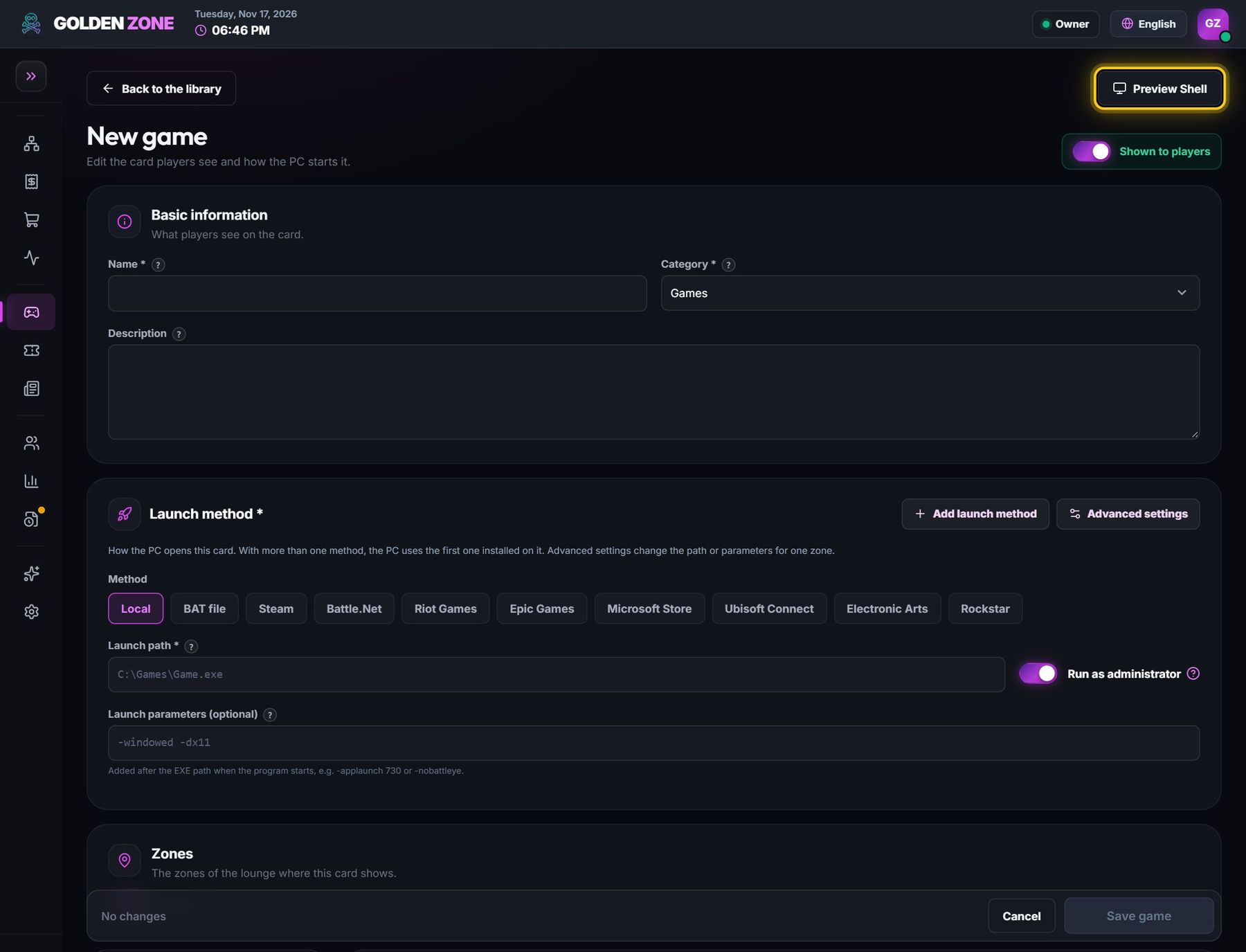
Game card settings, option by option
Every field of a game card in Apps & Games — what it does and when to use it.
Open Apps & Games → Library and click a card (or Add new game). These are all its options, top to bottom.
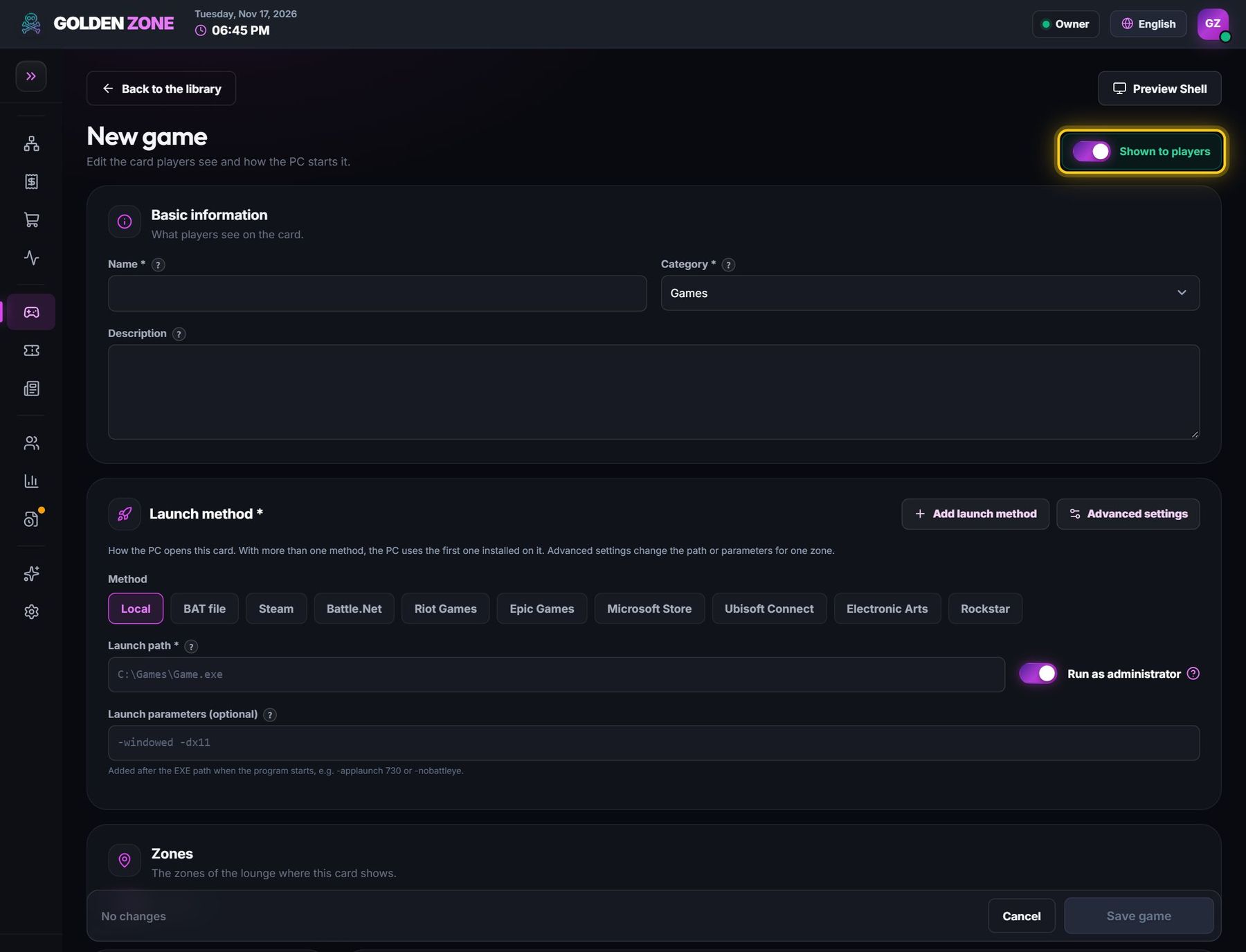
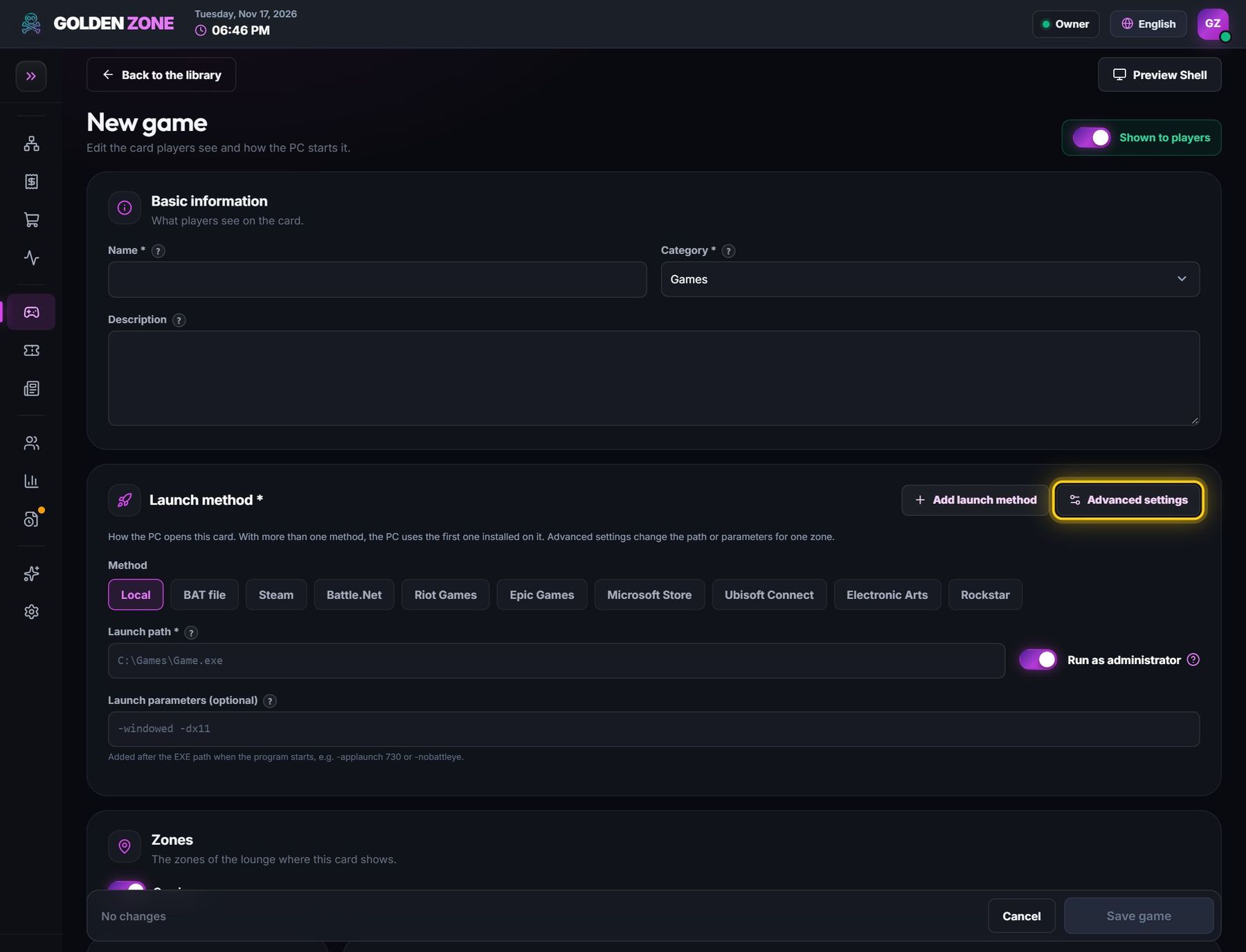
- Shown to players — on: players see the card. Off: the card is hidden from players and goes to the Archive, where it is deleted after 30 days unless you turn it on again. A card from the Ready library goes back to the Ready library.
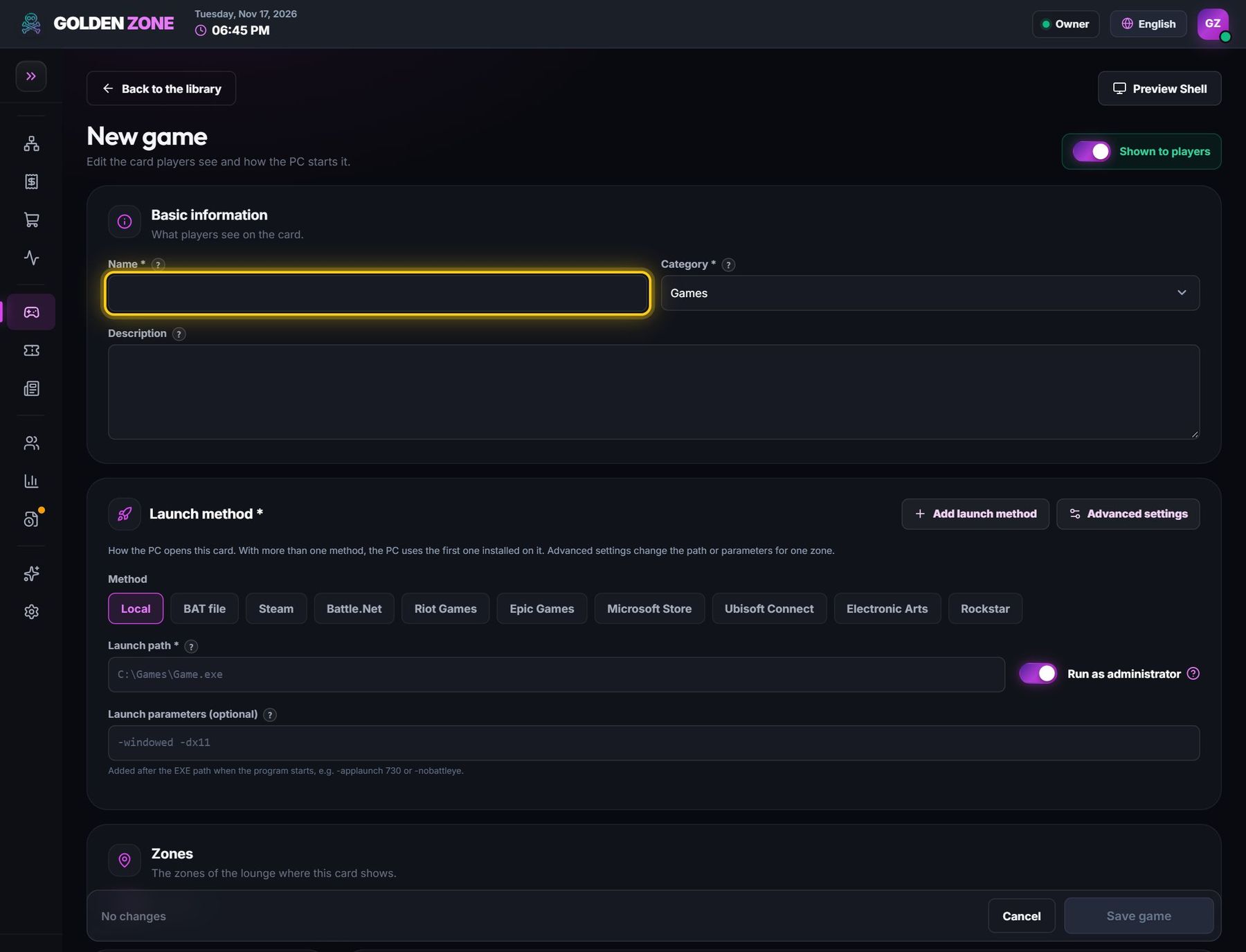
- Name — the name on the card and in the search of the player screen.
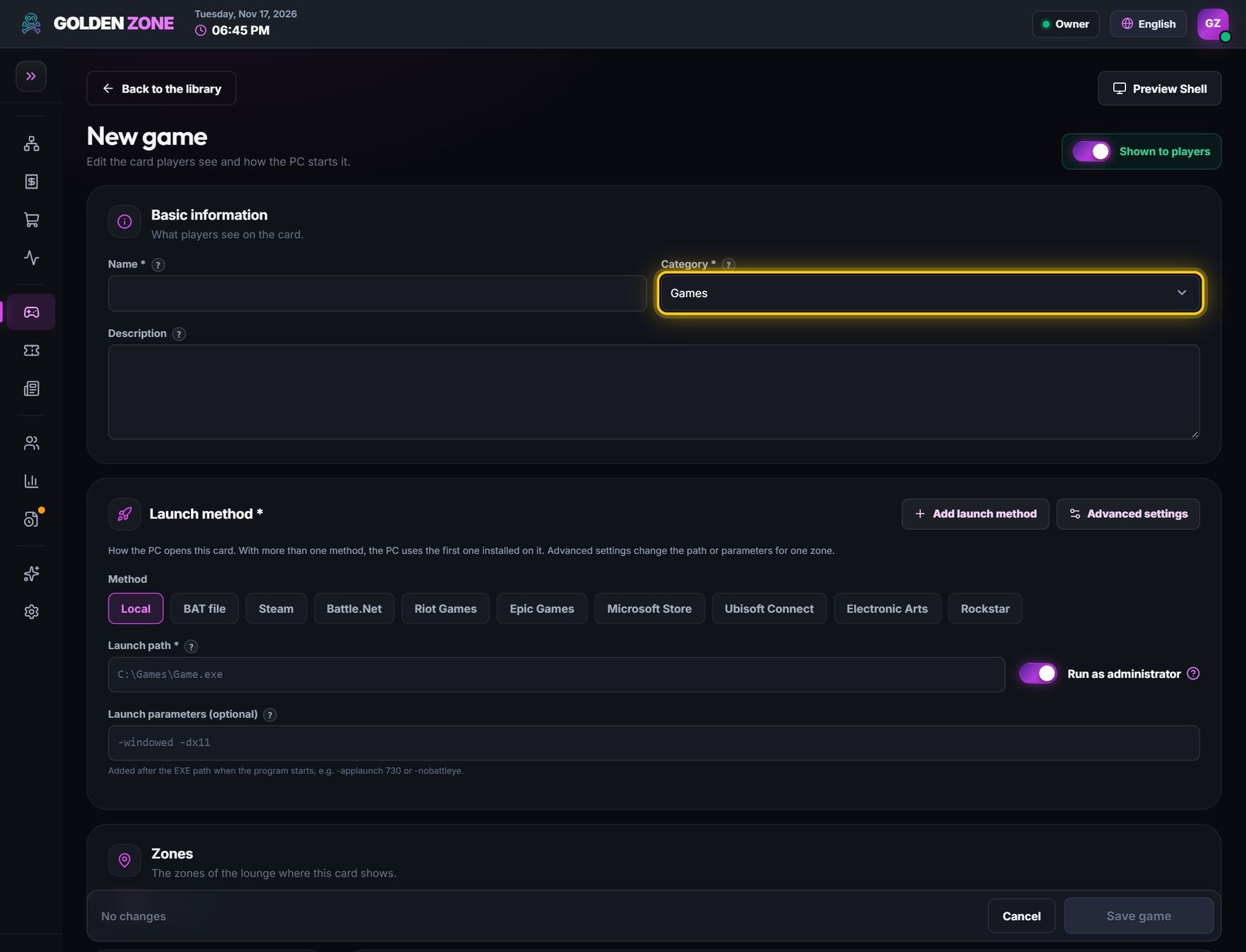
- Category — Games, Programs or Browsers: the tab where the card shows for players.
- Description — a short text shown in the card details on the player screen.
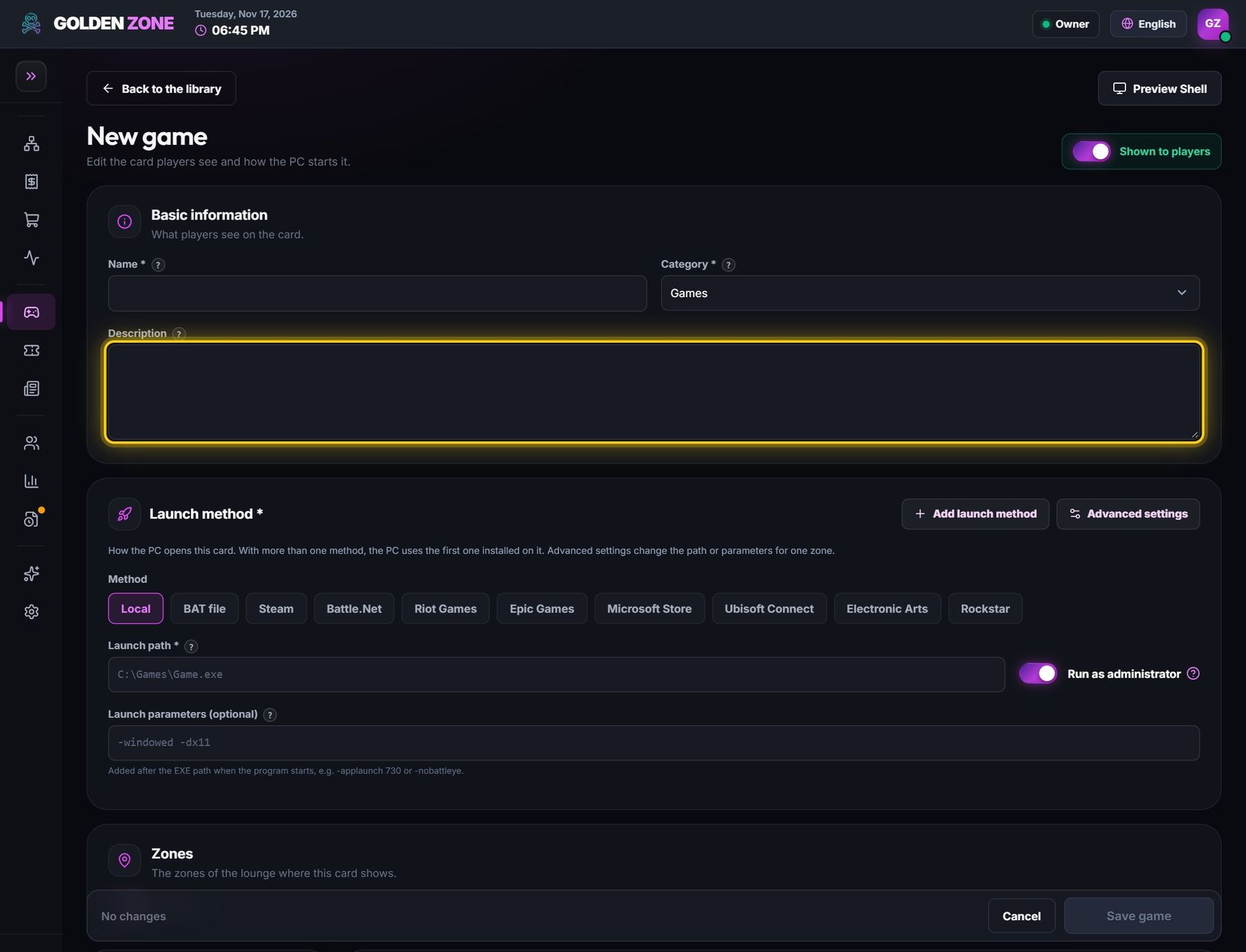
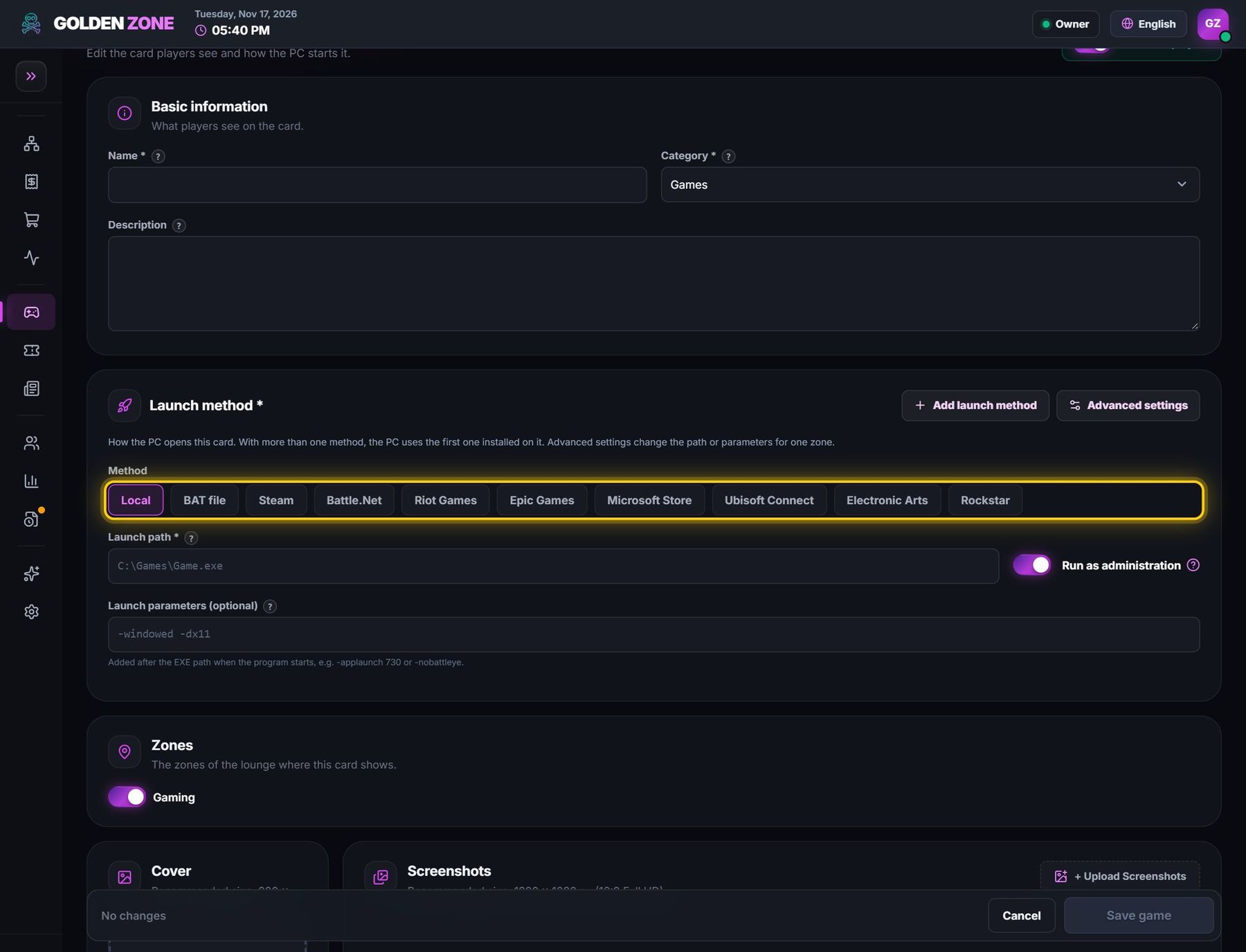
- Launch method — how the PC opens it: Local (a .exe), BAT file, or the store the game belongs to (Steam, Battle.net, Riot, Epic, Microsoft Store, Ubisoft, EA, Rockstar).
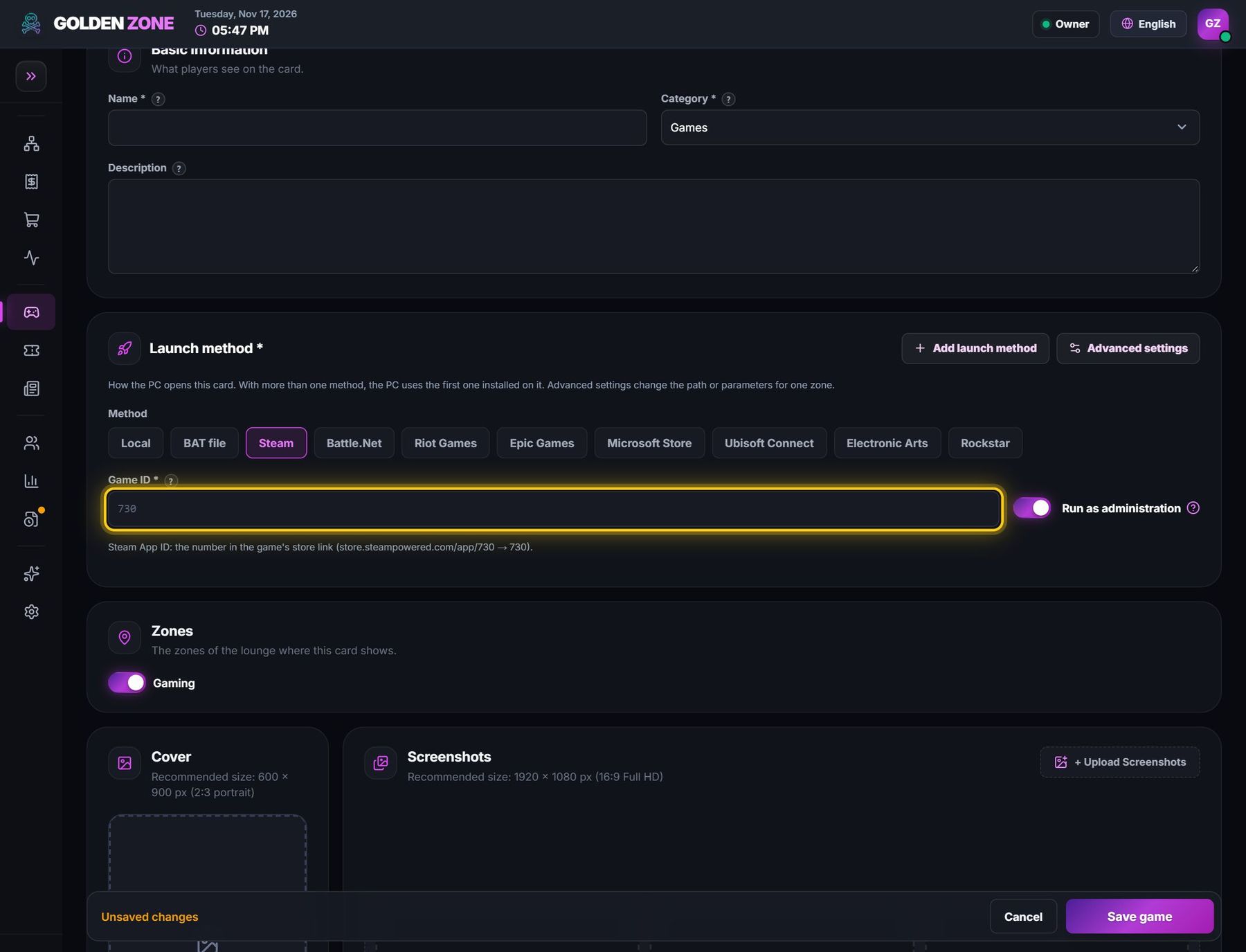
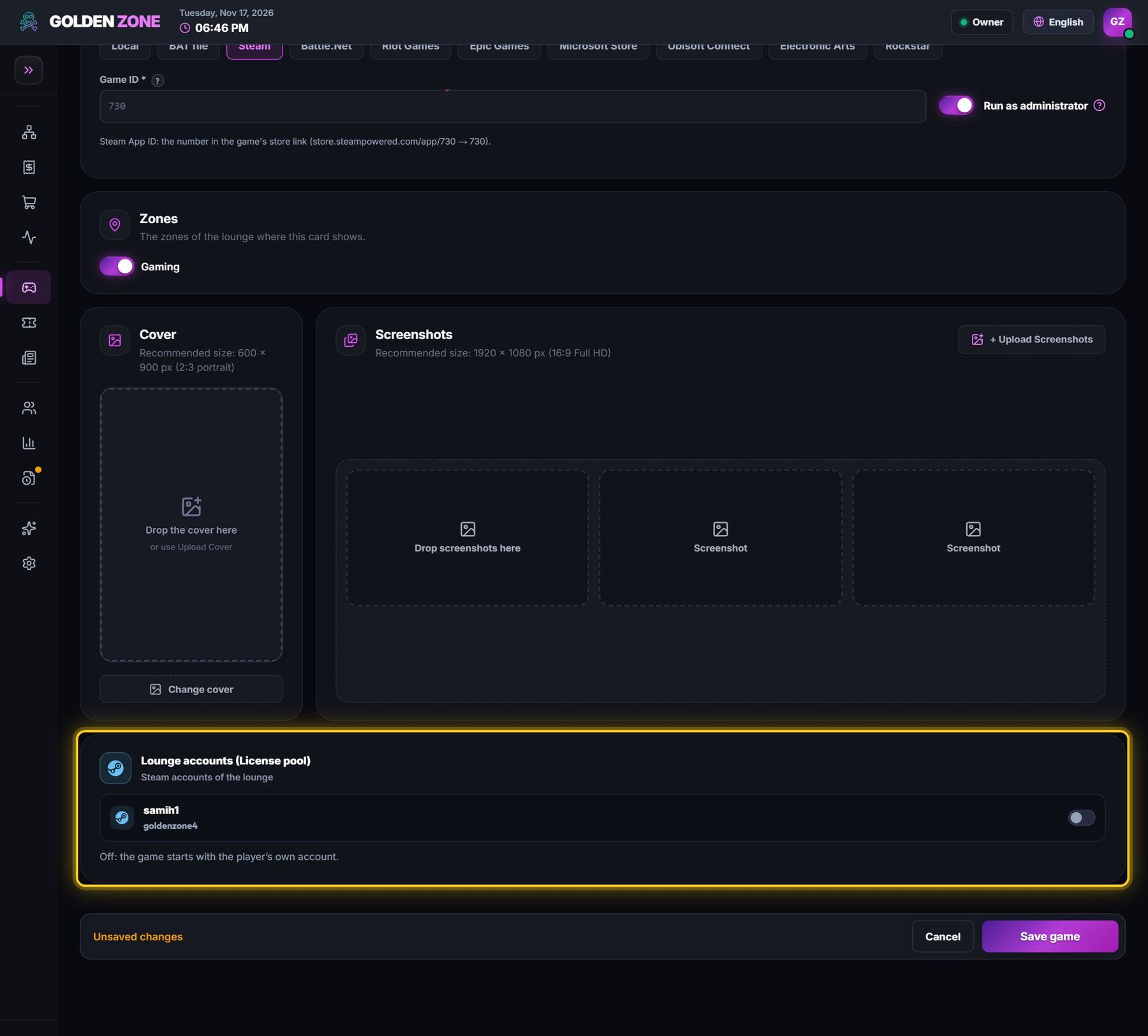
- Game ID (store methods) — the game's id in that store. Steam: the number in the store link (…/app/730 → 730). Epic: the AppName, e.g. Fortnite, Sugar (Rocket League).
- Launch path (Local) — the full path of the program file (.exe) on the PCs.
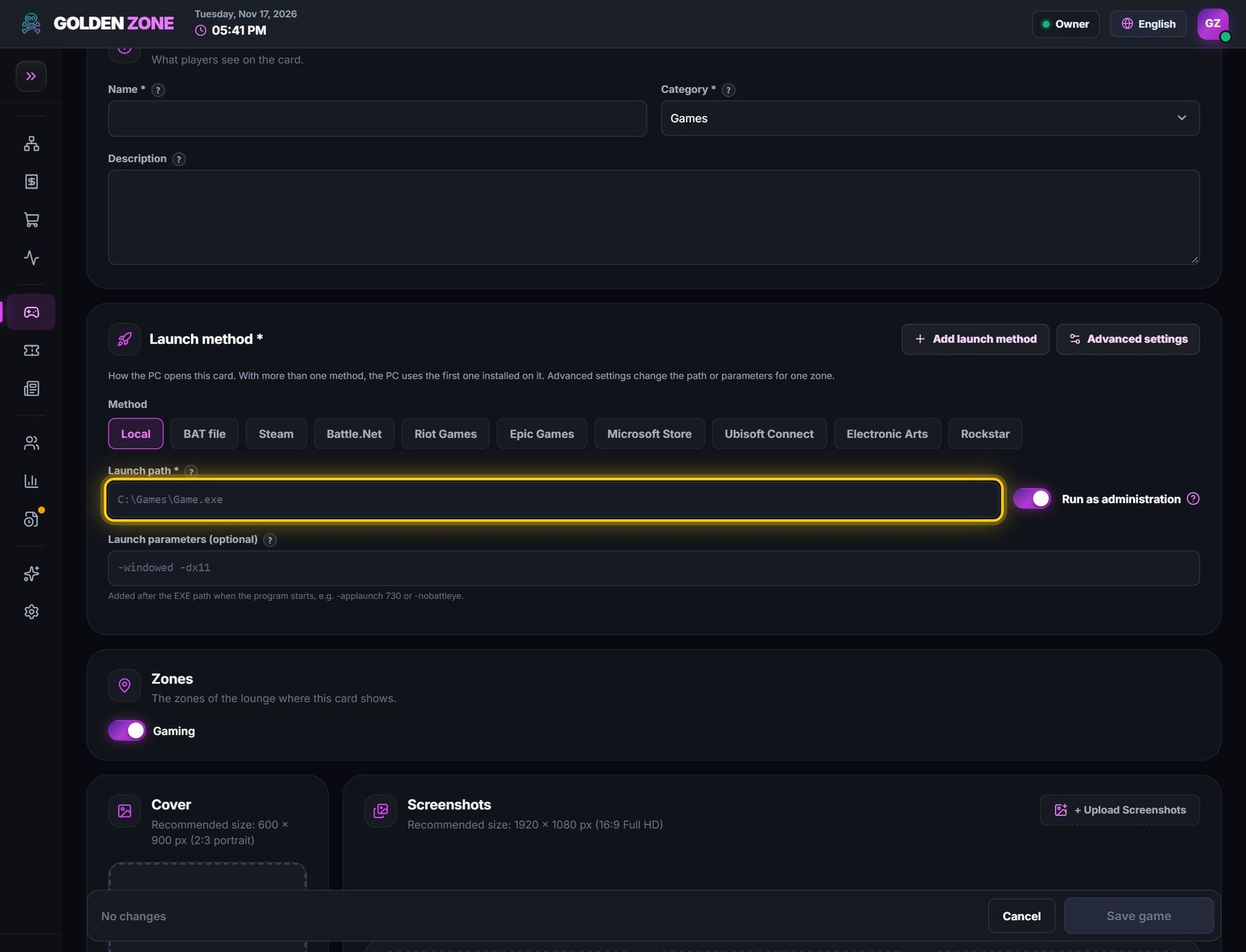
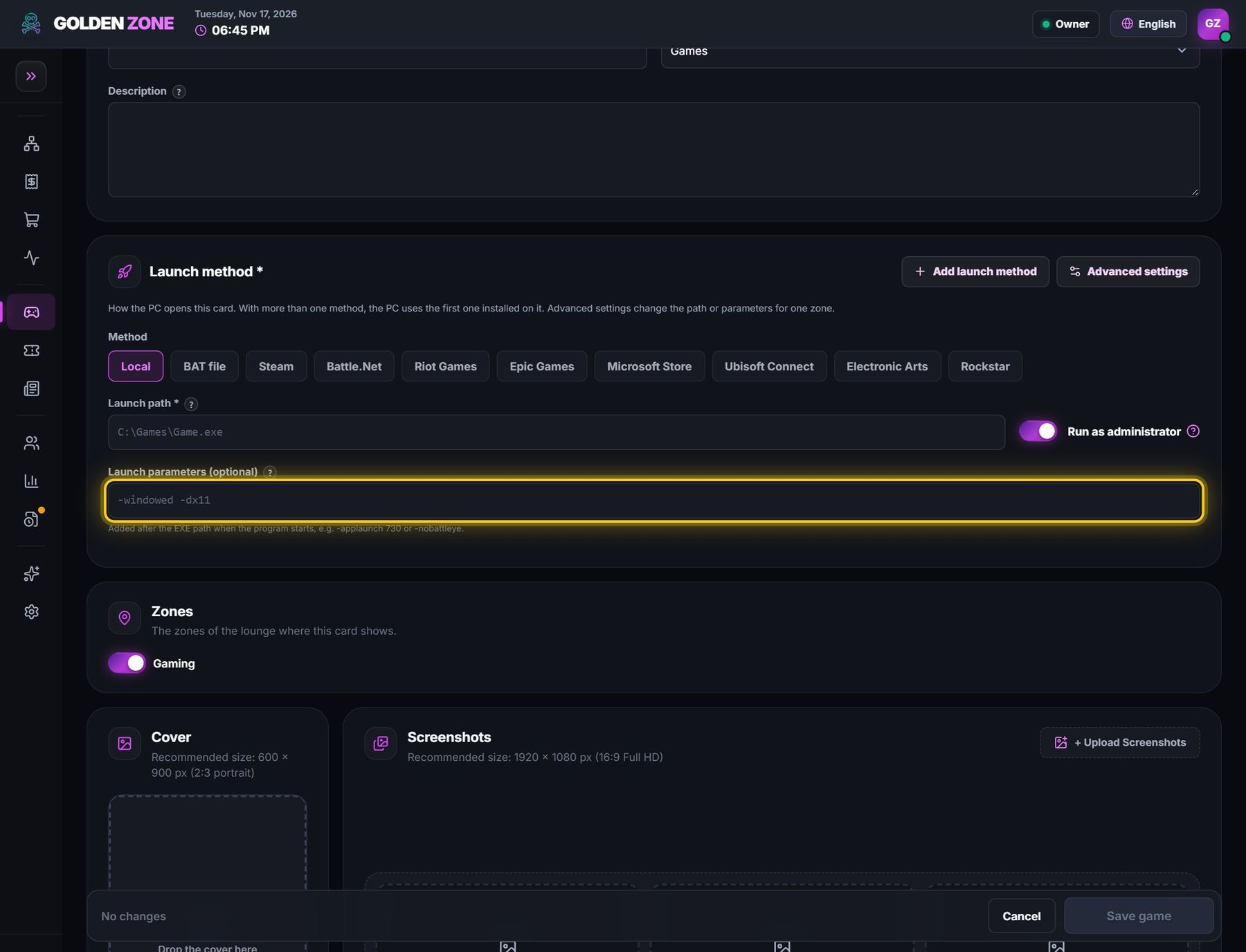
- Launch parameters (optional) — added after the .exe when it starts, e.g. -nobattleye or -windowed.
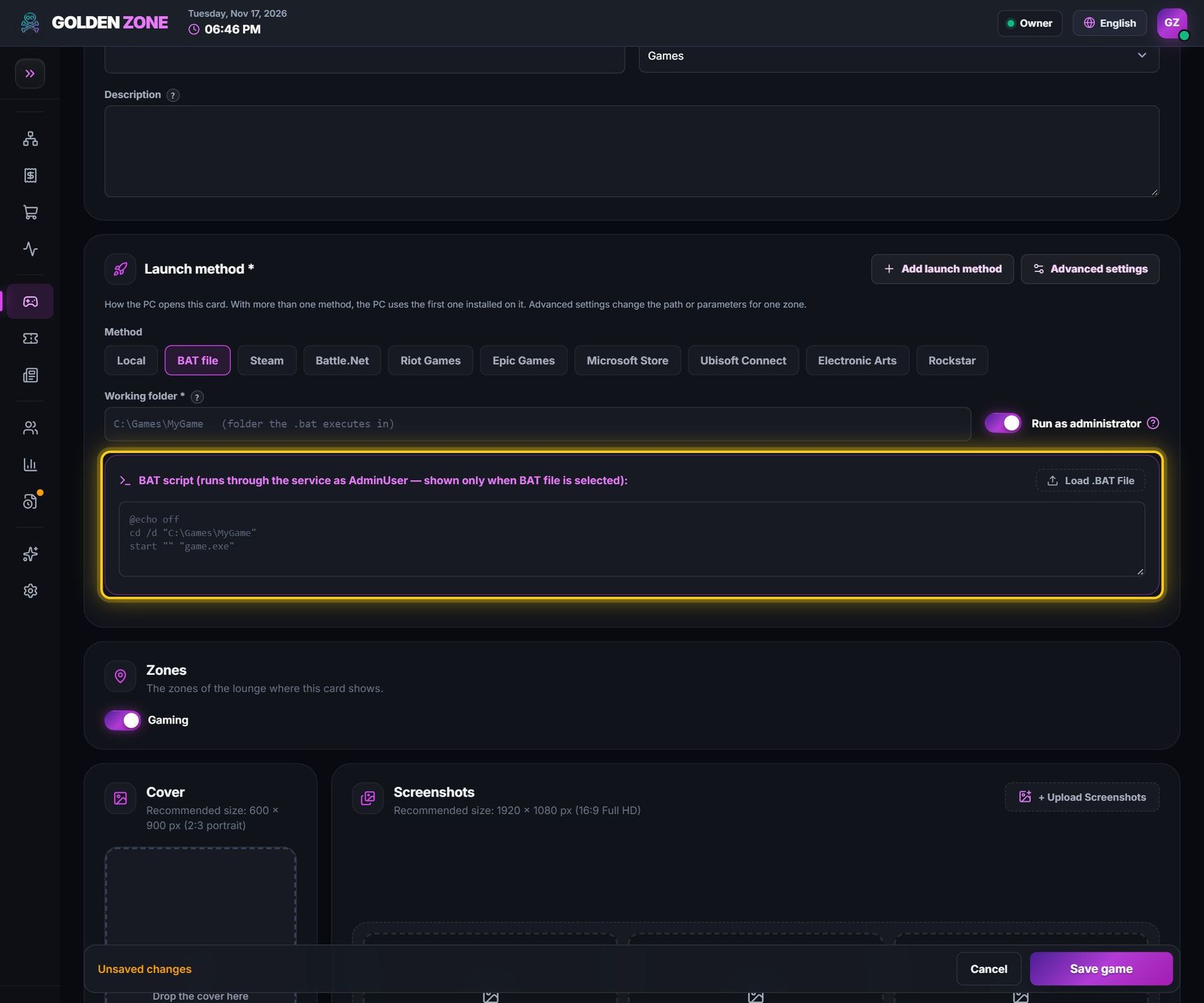
- BAT file — a small script the PC runs to start the game, with its working folder. For games that need several steps to start.
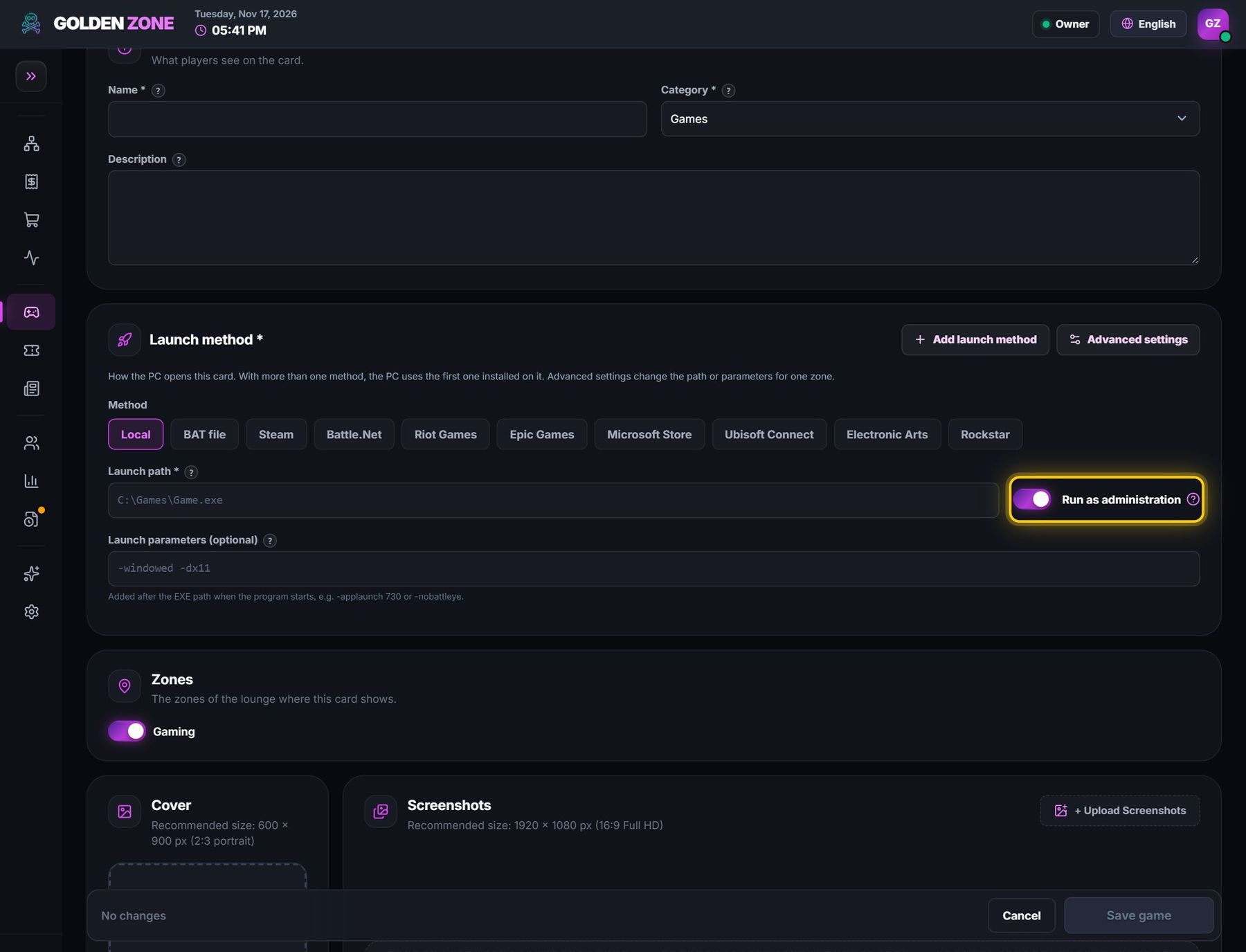
- Run as administrator — starts the program with administrator rights (some games and anti-cheats need it). Launchers themselves are never given administrator rights, for safety.
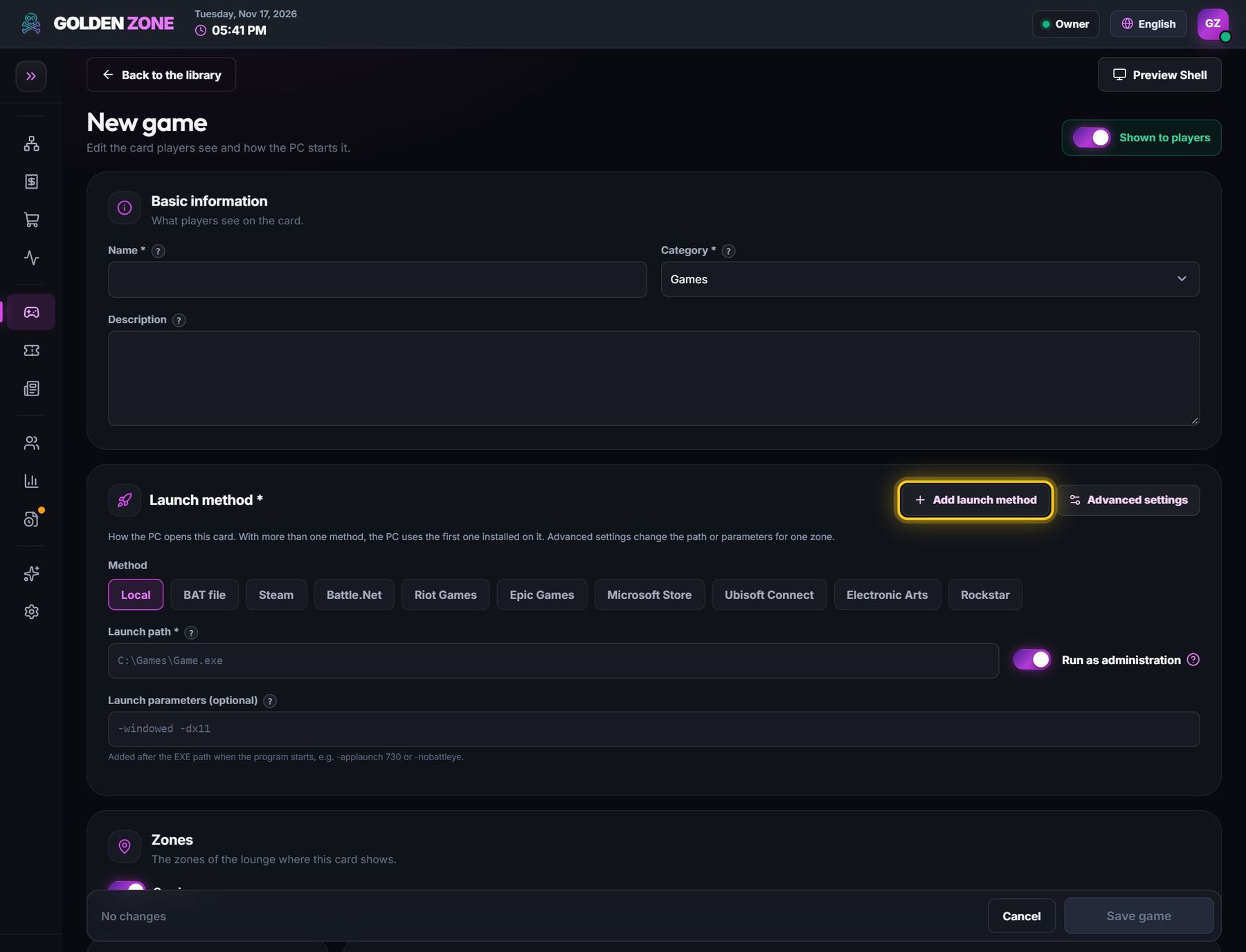
- Add launch method — a second way to start the same card (up to 4). The PC uses the first one installed on it; with names, the player can choose.
- Advanced settings — a different path or parameters for one zone (for example VIP PCs with the game on another drive).
- Zones — the zones of the lounge where this card shows.
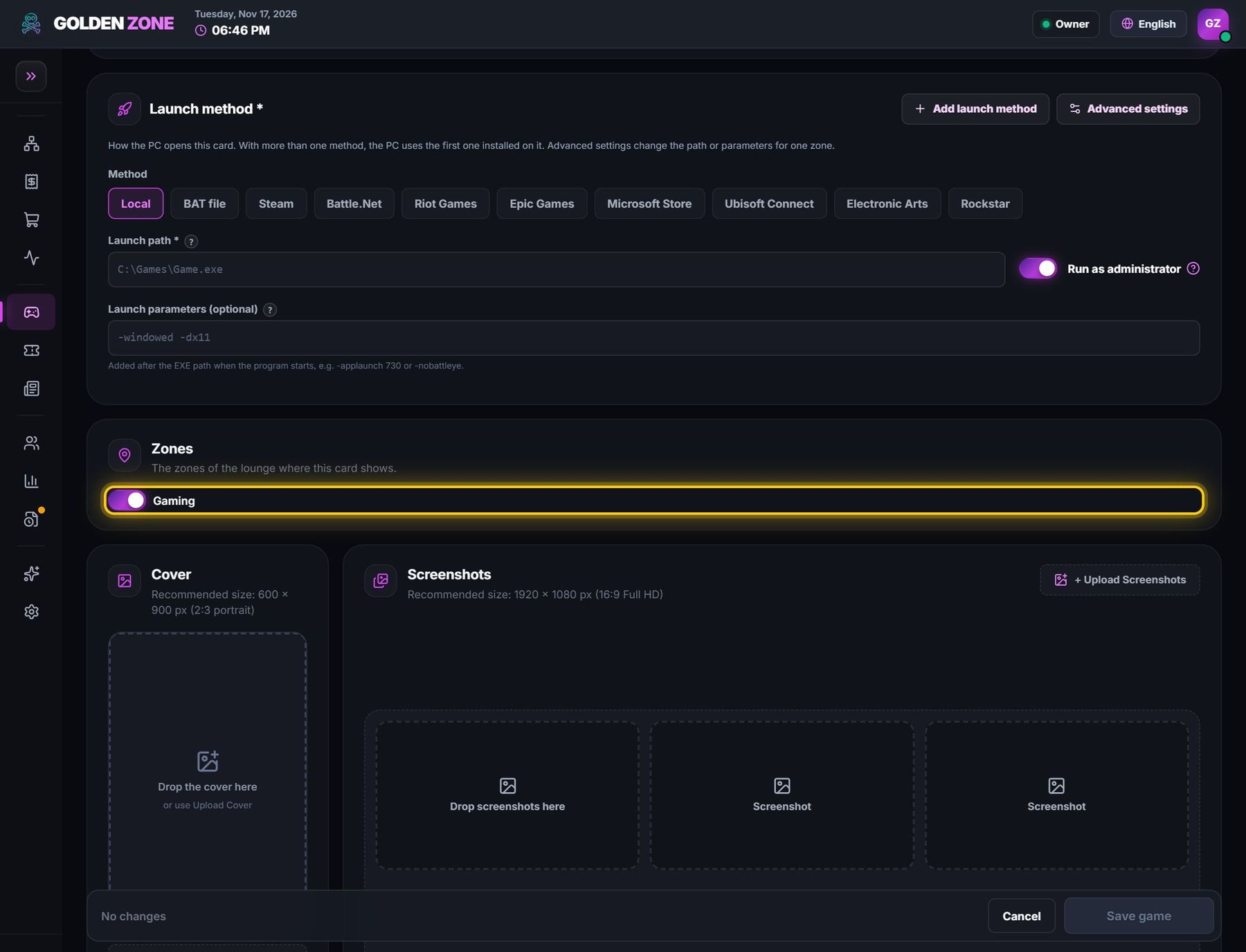
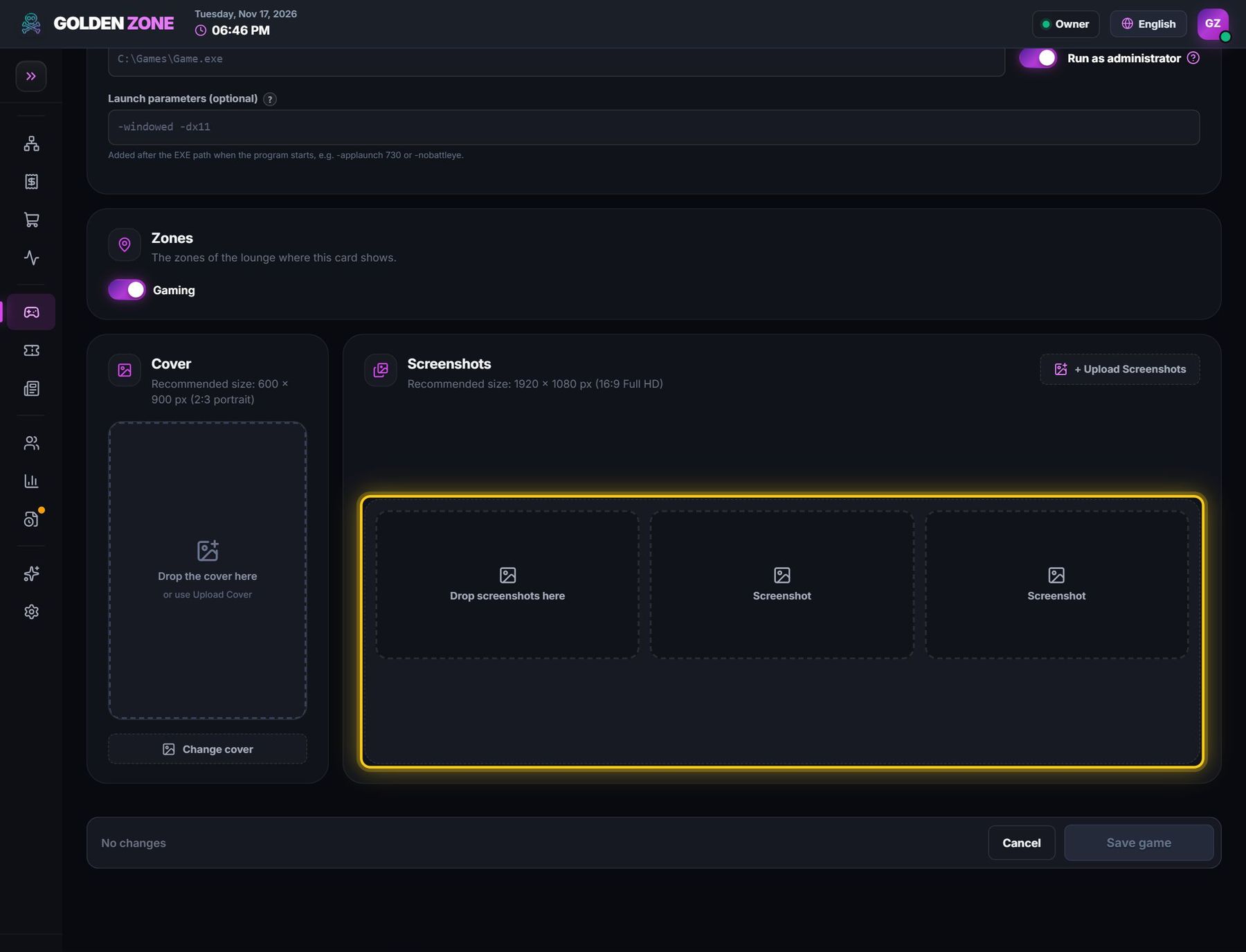
- Cover (600 × 900) and Screenshots (1920 × 1080) — what players see on the card and in its details.
- Lounge accounts (License pool) — for store games: switch on the lounge accounts that may open this game. Off: the player uses their own account.
- Preview Shell shows the card on the player screen; Save game sends it to the PCs.