Apps & Games settings, option by option
Game updates, launchers, Epic account, sign-in behaviour, performance mode and game folders — each option explained.
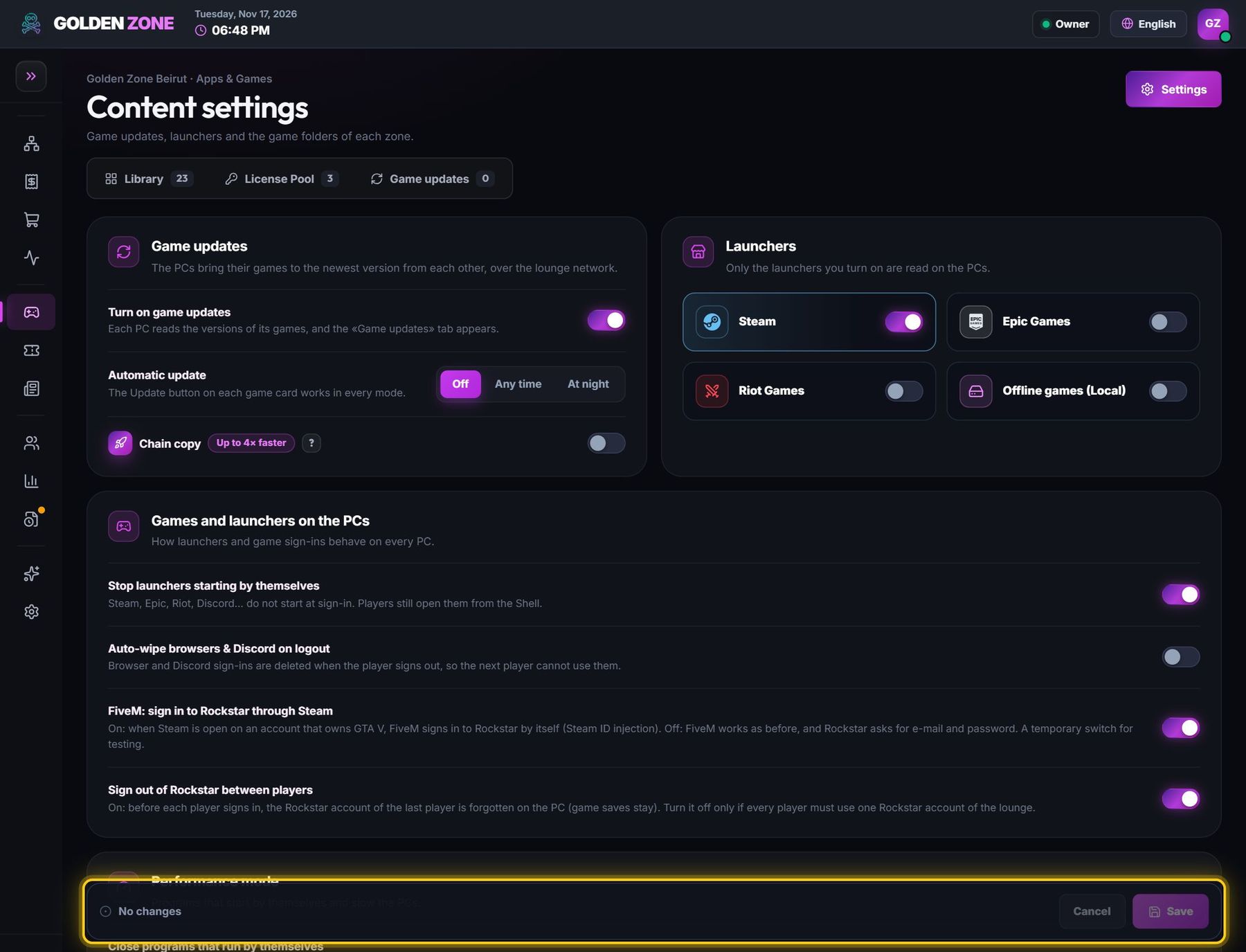
Open Apps & Games → Settings. Nothing changes on the PCs before you press Save.
Game updates
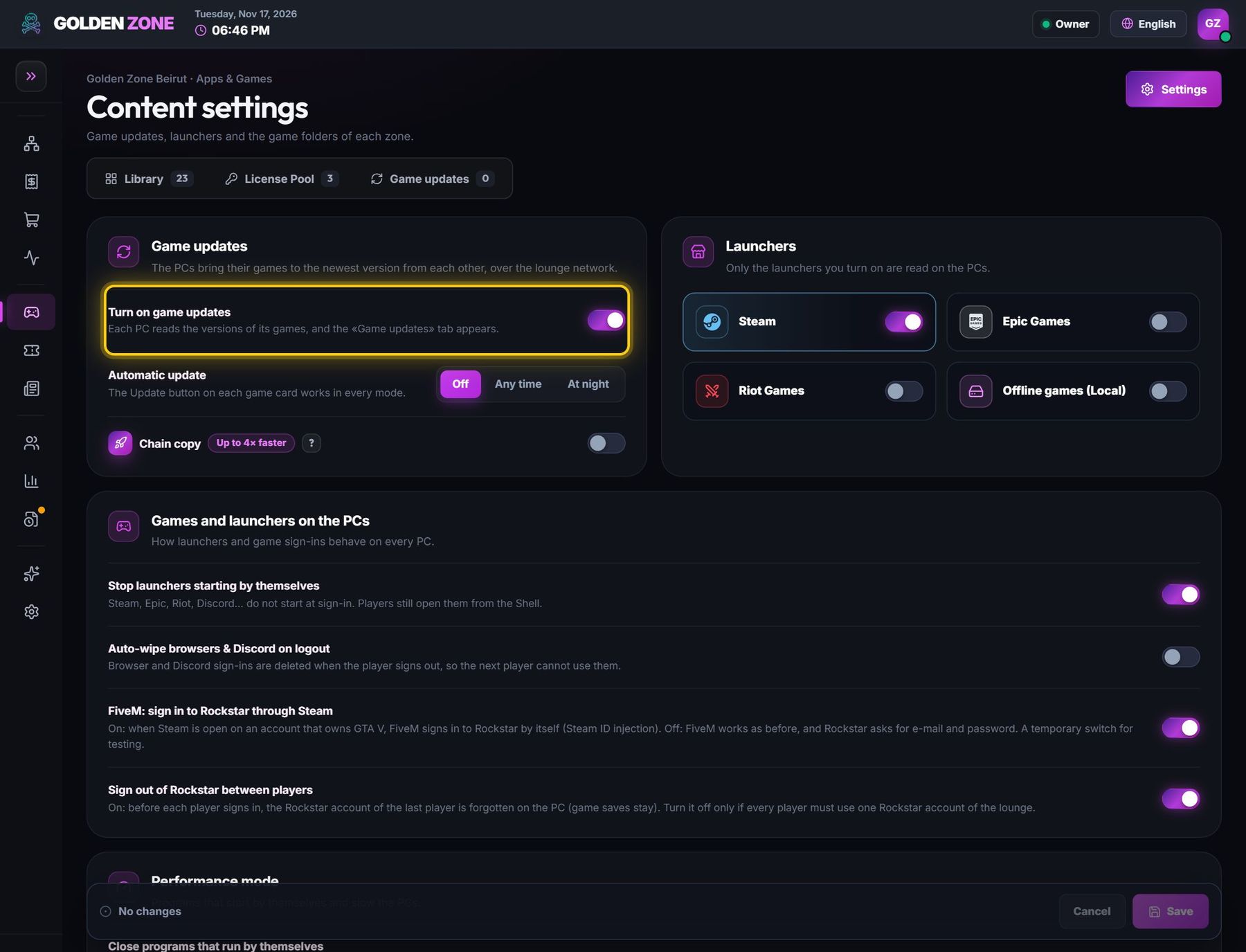
- Turn on game updates — each PC reports the versions of its games, and the Game updates tab appears.
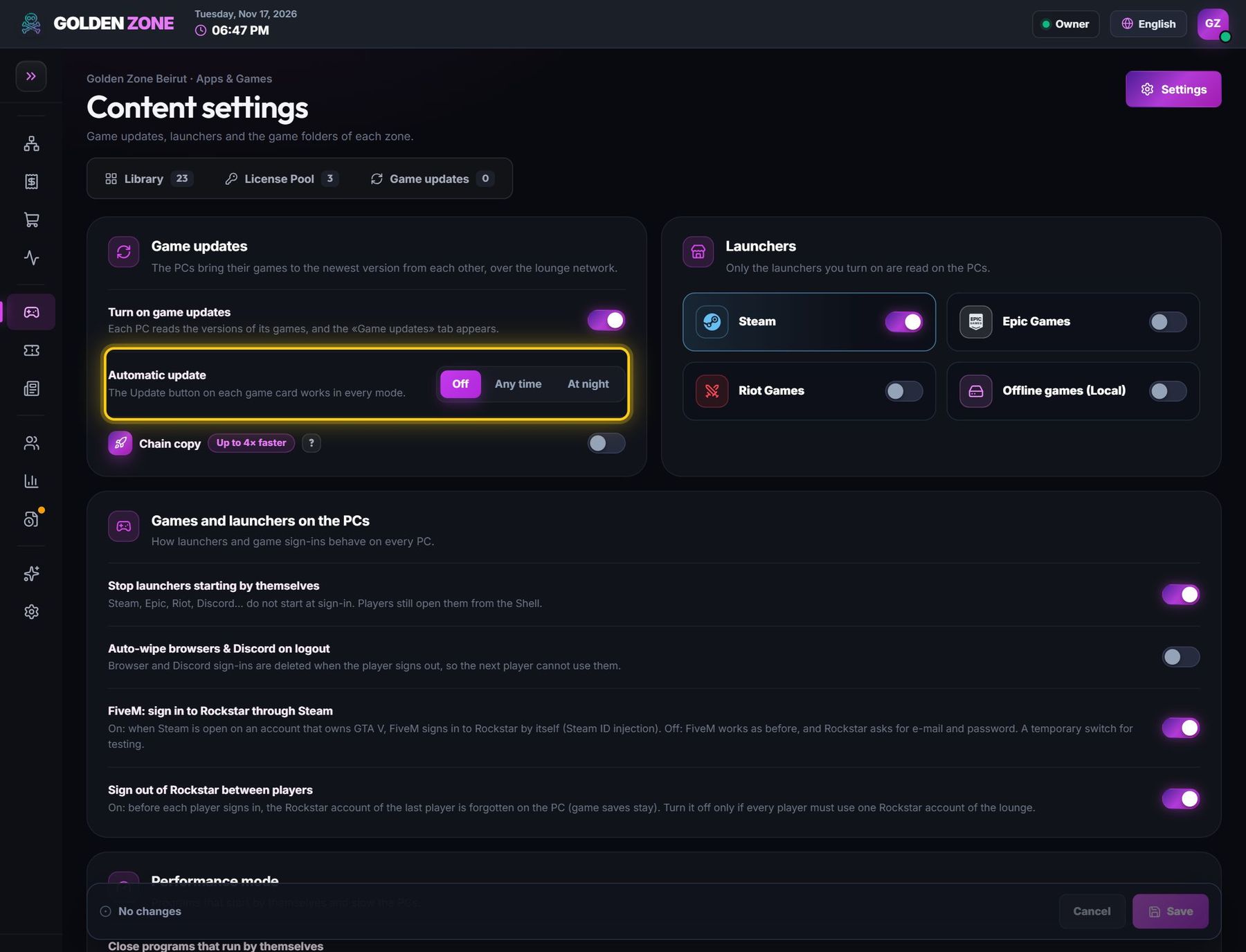
- Automatic update — Off: you press Update. Any time: updates start by themselves. At night: only between the hours you choose. The Update button works in every mode.
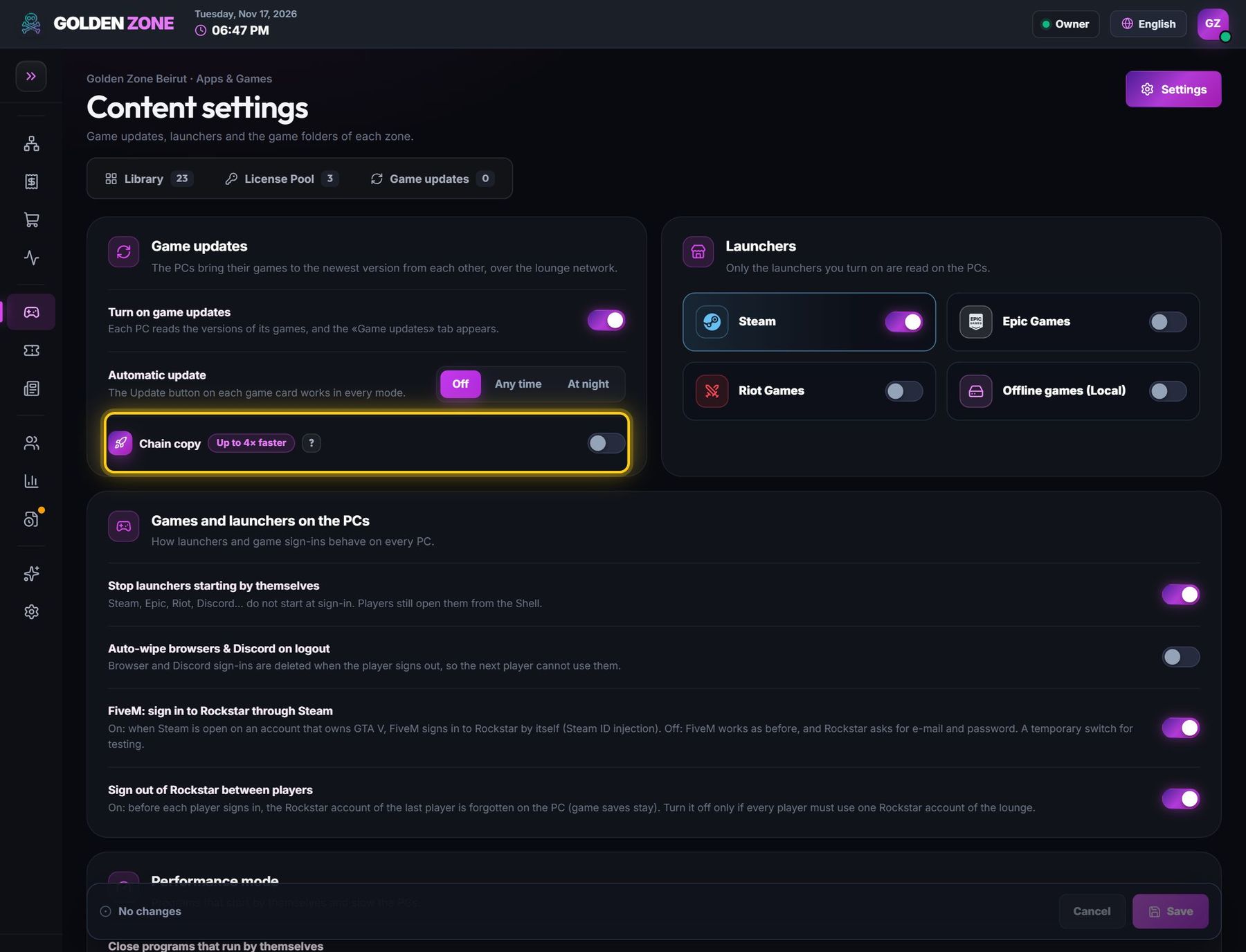
- Chain copy — PCs pass an update on while they still receive it, so a full lounge is ready up to 4× faster. A PC whose network drops is moved to “receive only” by itself.
- Launchers — only the launchers you switch on are read on the PCs (Steam, Epic, Riot, Offline games).
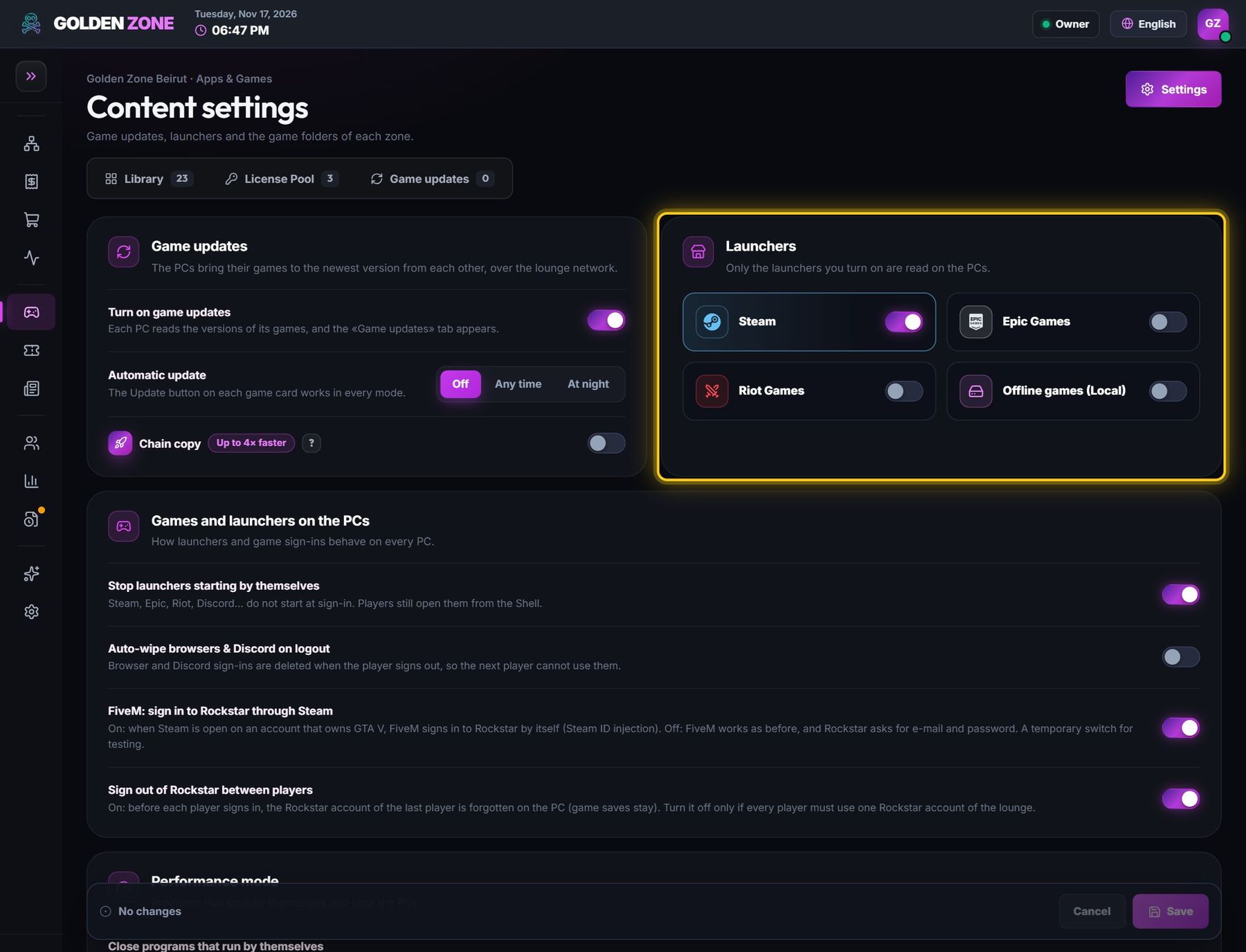
- Offline games — games without a launcher: switch on the ones to follow and check their folder. The other PCs copy from the reference PC you choose in Game updates.
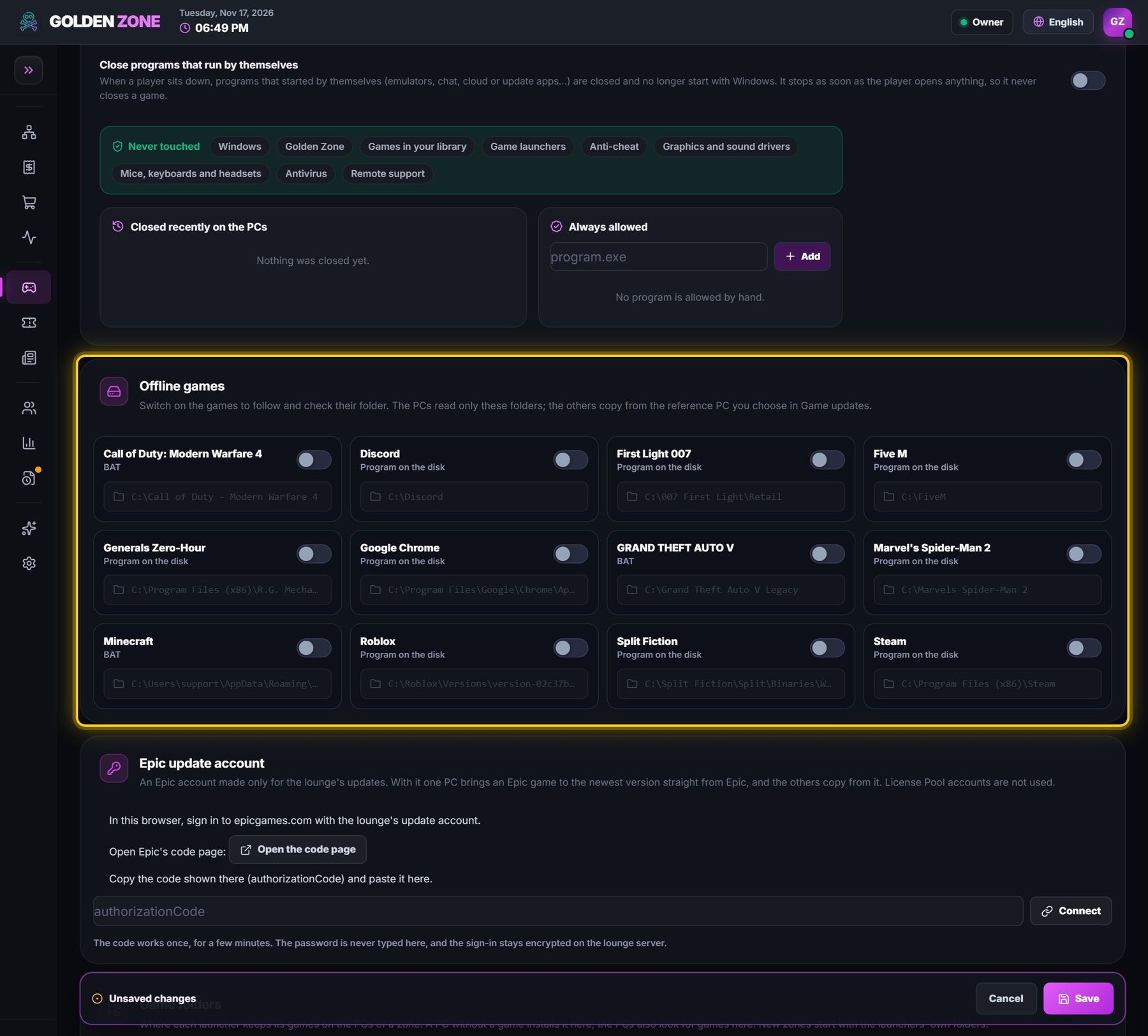
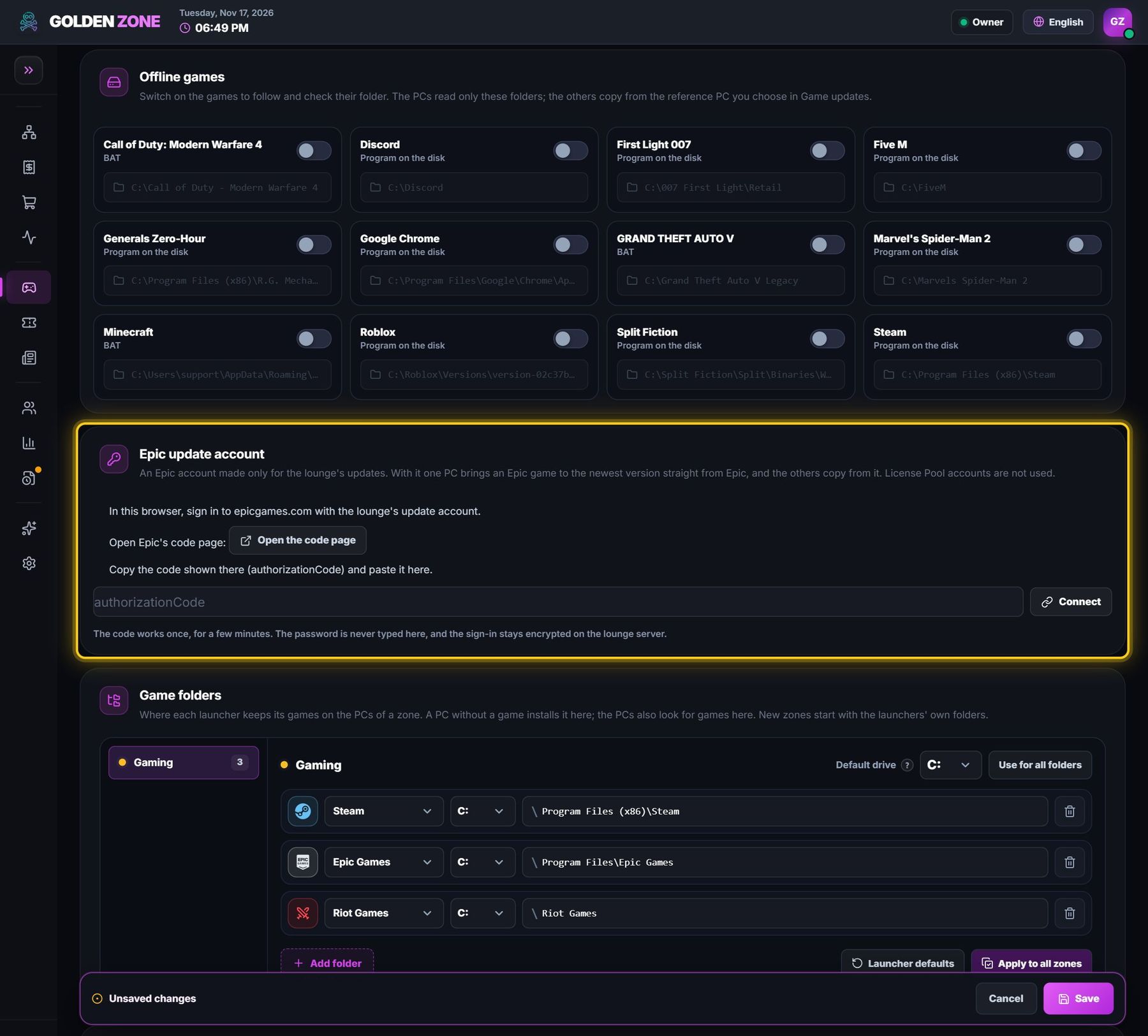
- Epic update account — an Epic account made only for updates. With it one PC brings an Epic game to the newest version straight from Epic, the others copy from it.
Games and launchers on the PCs
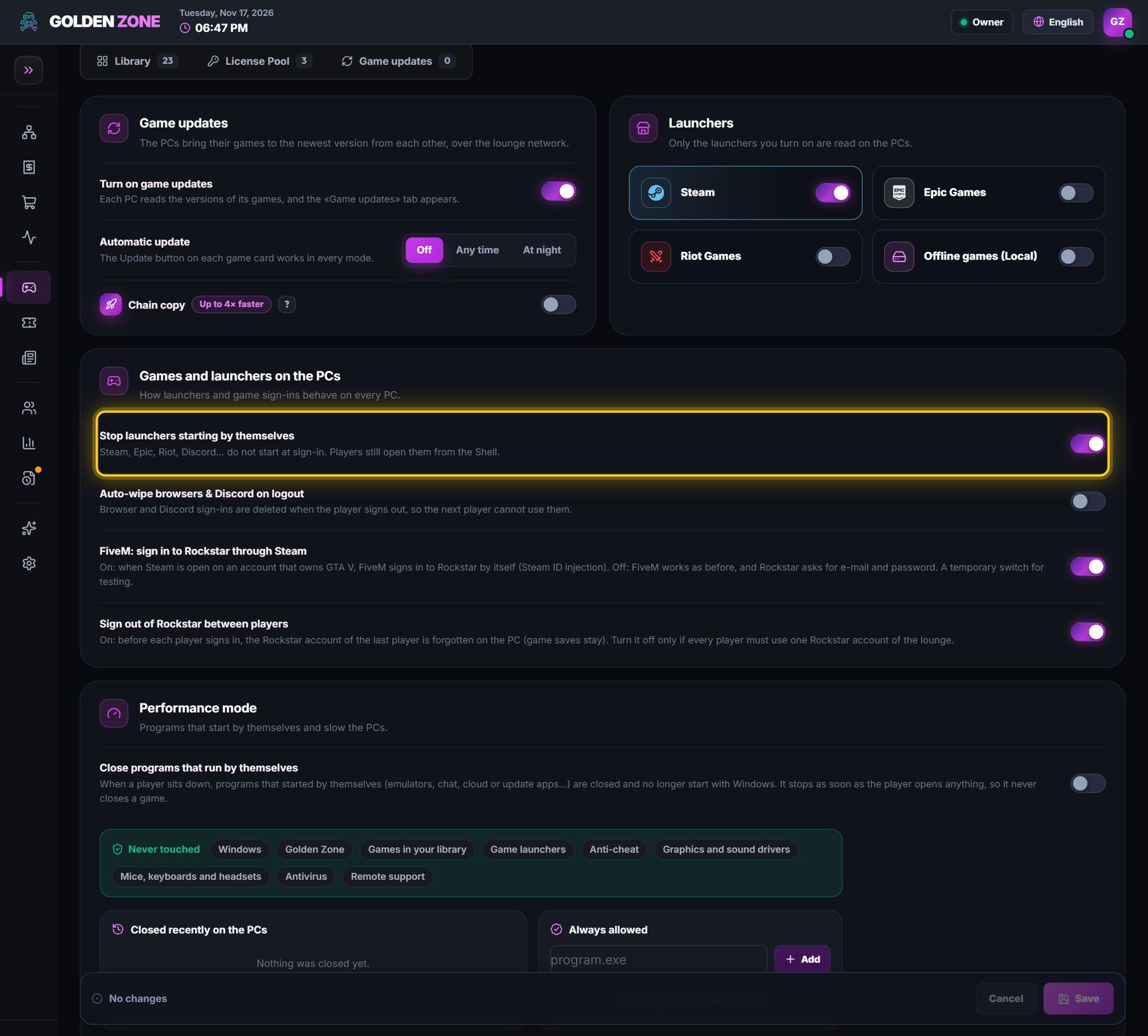
- Stop launchers starting by themselves — Steam, Epic, Riot, Discord… do not open at sign-in; players still open them from the player screen.
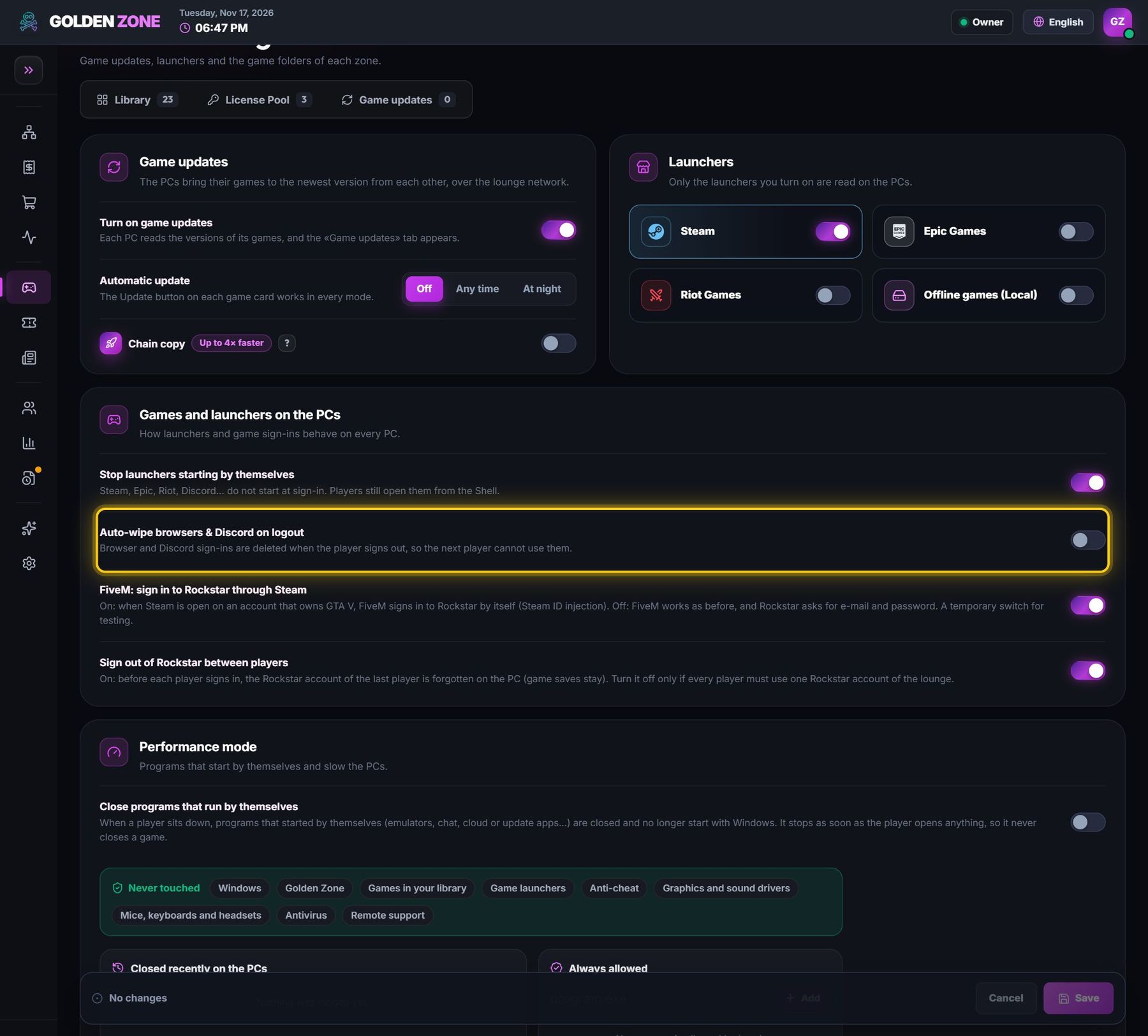
- Auto-wipe browsers & Discord on logout — the player's browser and Discord sign-ins are deleted when they leave, so the next player cannot use them.
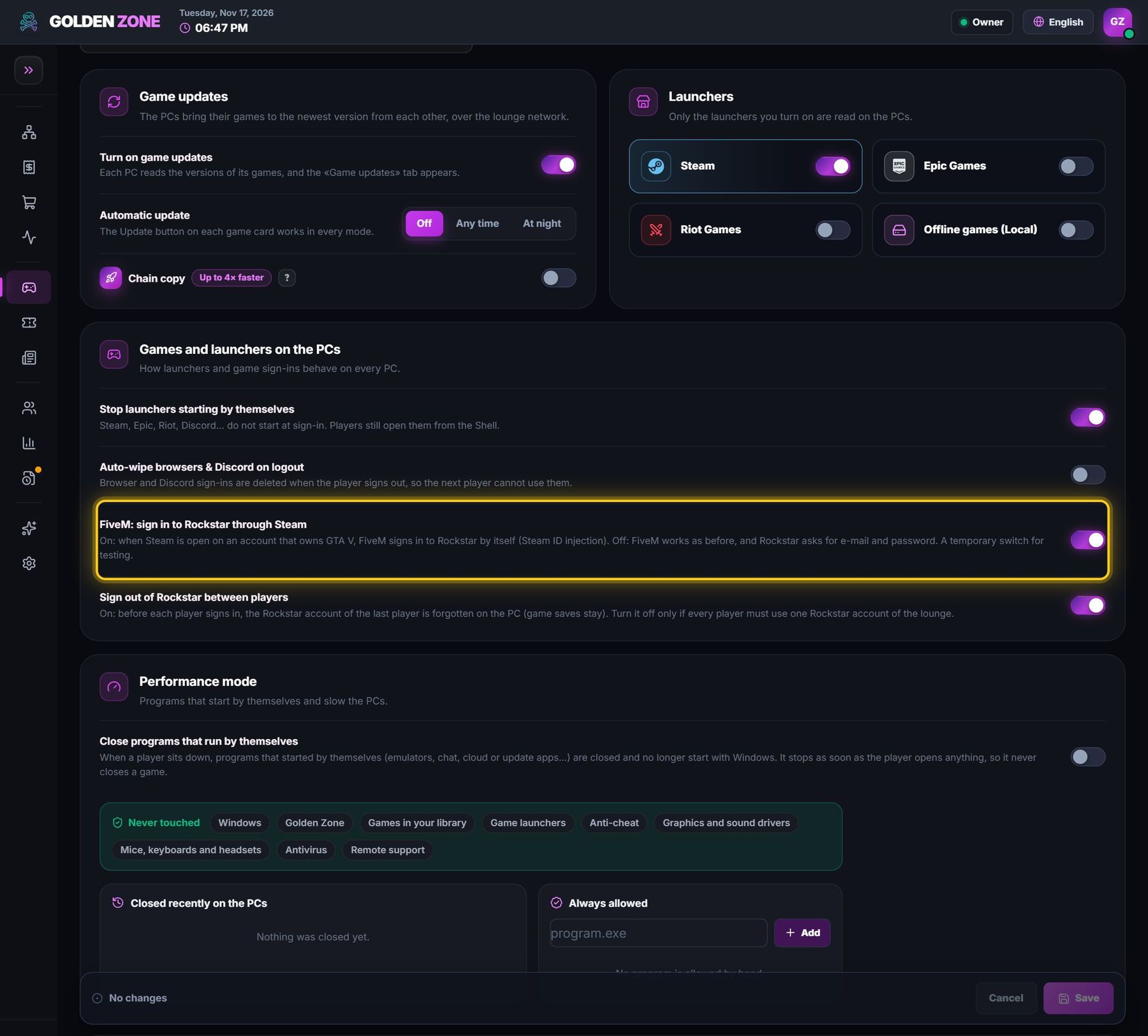
- FiveM: sign in to Rockstar through Steam — when Steam is open on an account that owns GTA V, FiveM signs in to Rockstar by itself.
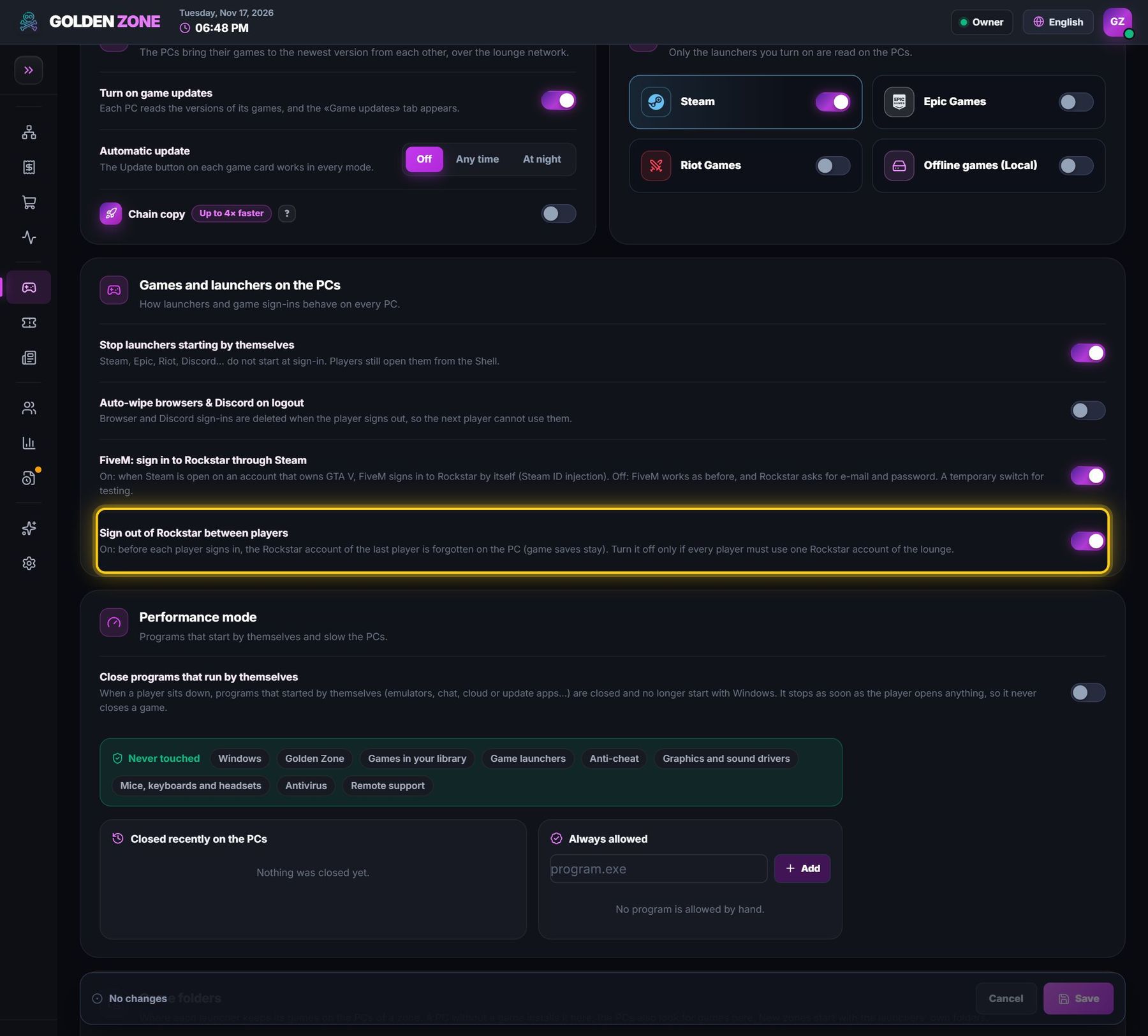
- Sign out of Rockstar between players — the last player's Rockstar account is forgotten before the next one sits down (game saves stay).
Performance mode
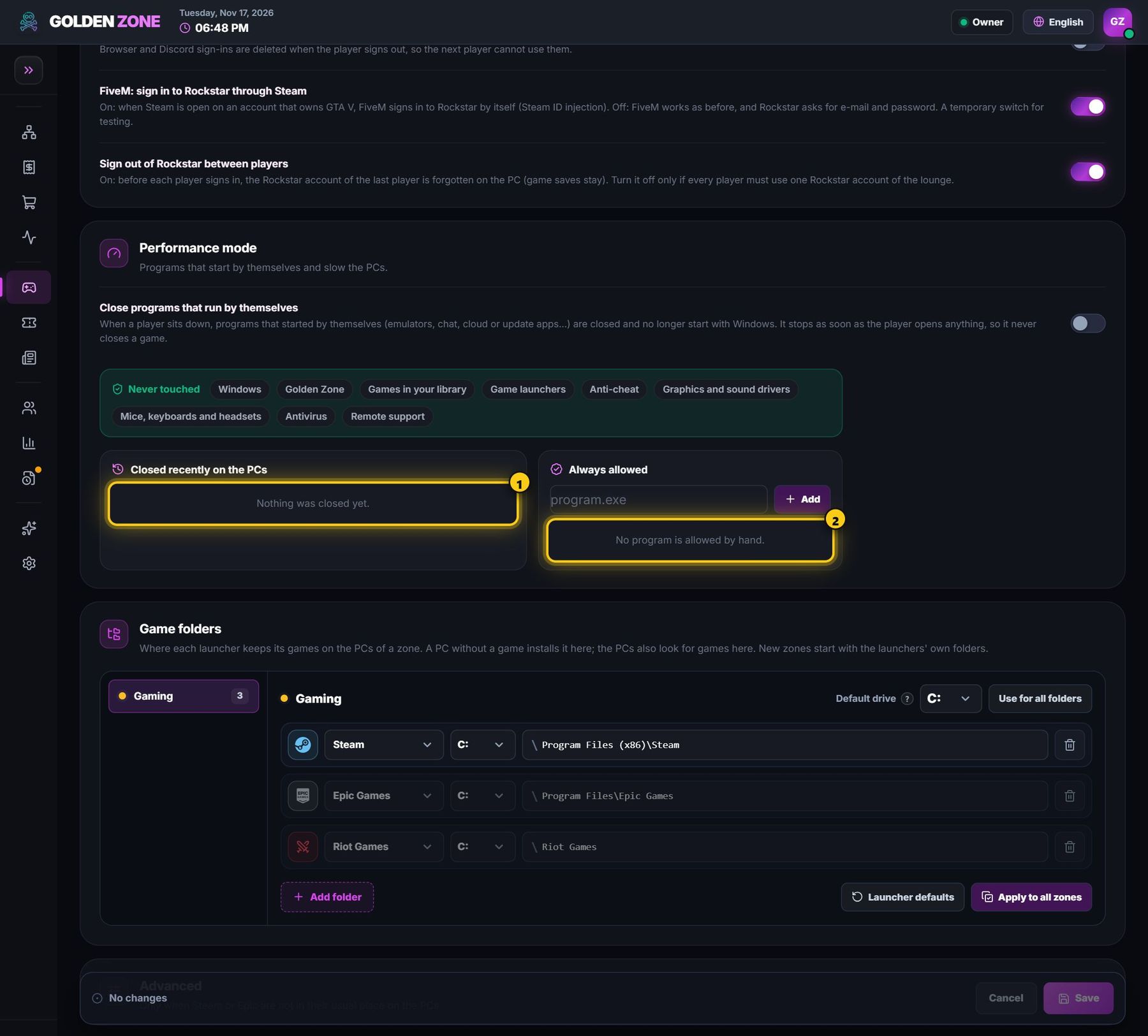
- Close programs that run by themselves — when a player sits down, programs that started by themselves (emulators, chat, cloud or update apps…) are closed and stop starting with Windows. It stops as soon as the player opens anything, so it never closes a game. Windows, Golden Zone, your games, launchers, anti-cheat and drivers are never touched.
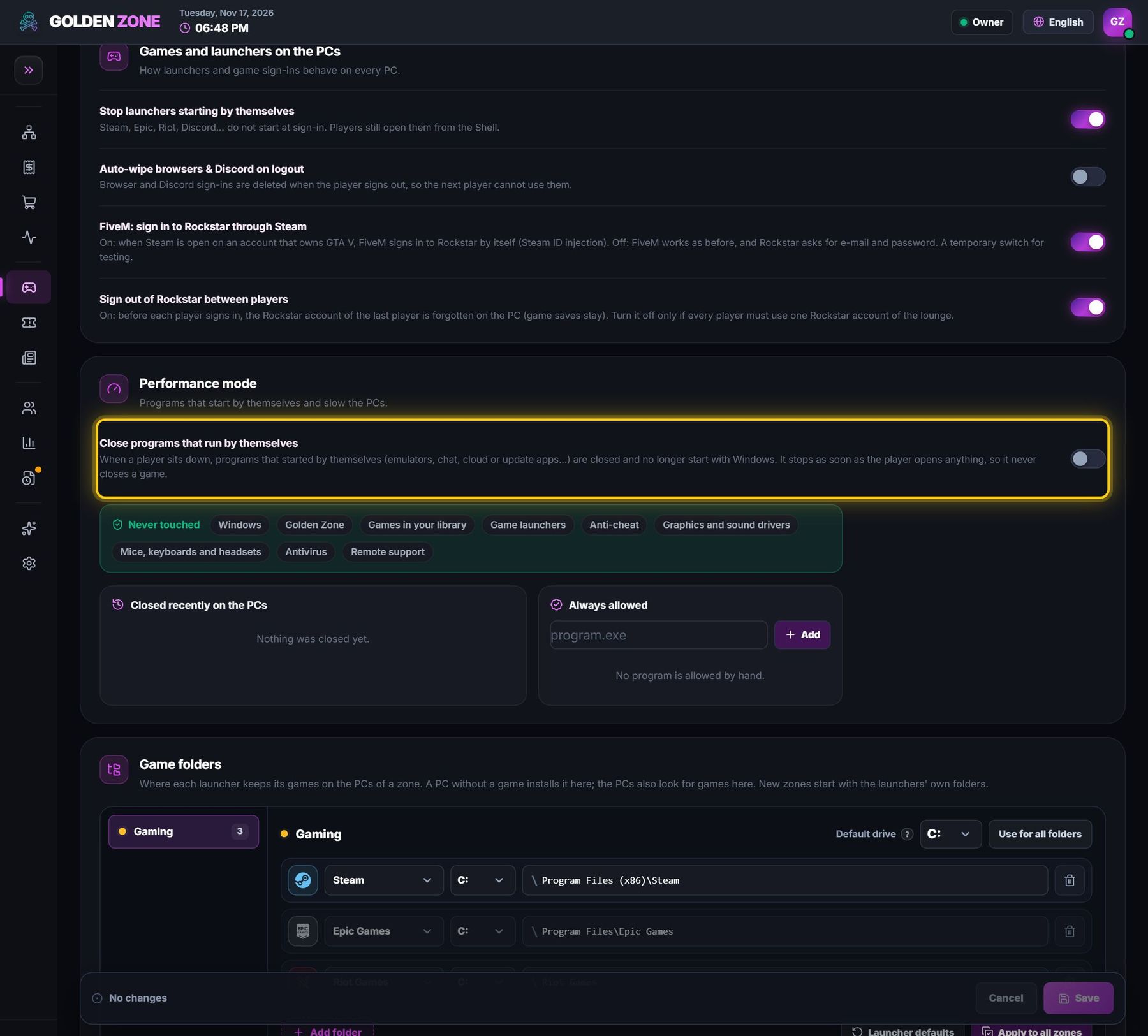
- Closed recently on the PCs shows what it closed; add a program to Always allowed (e.g. program.exe) so it is never closed.
Game folders
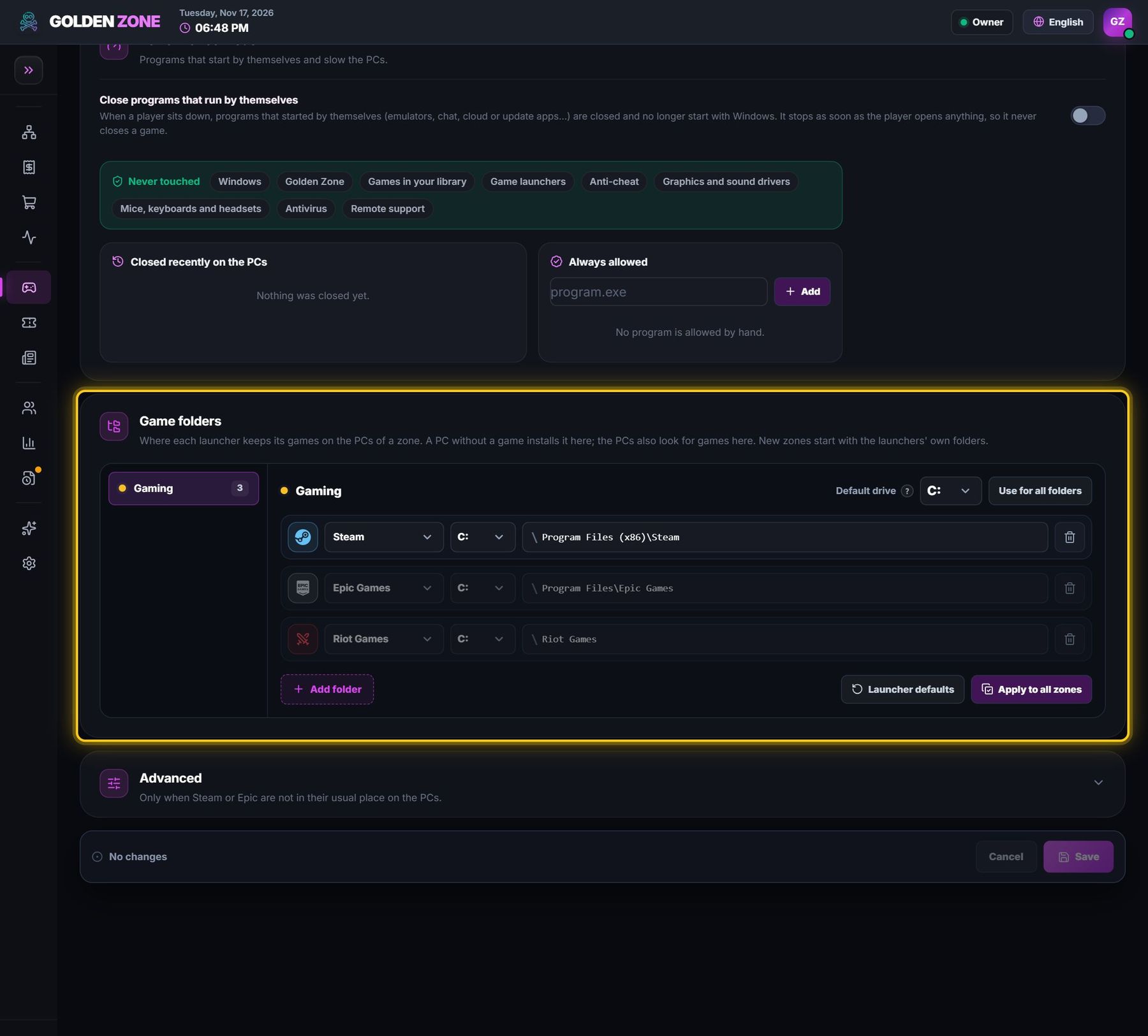
- Game folders — where each launcher keeps its games on the PCs of each zone. A PC without a game installs it there; the PCs also look for games there.
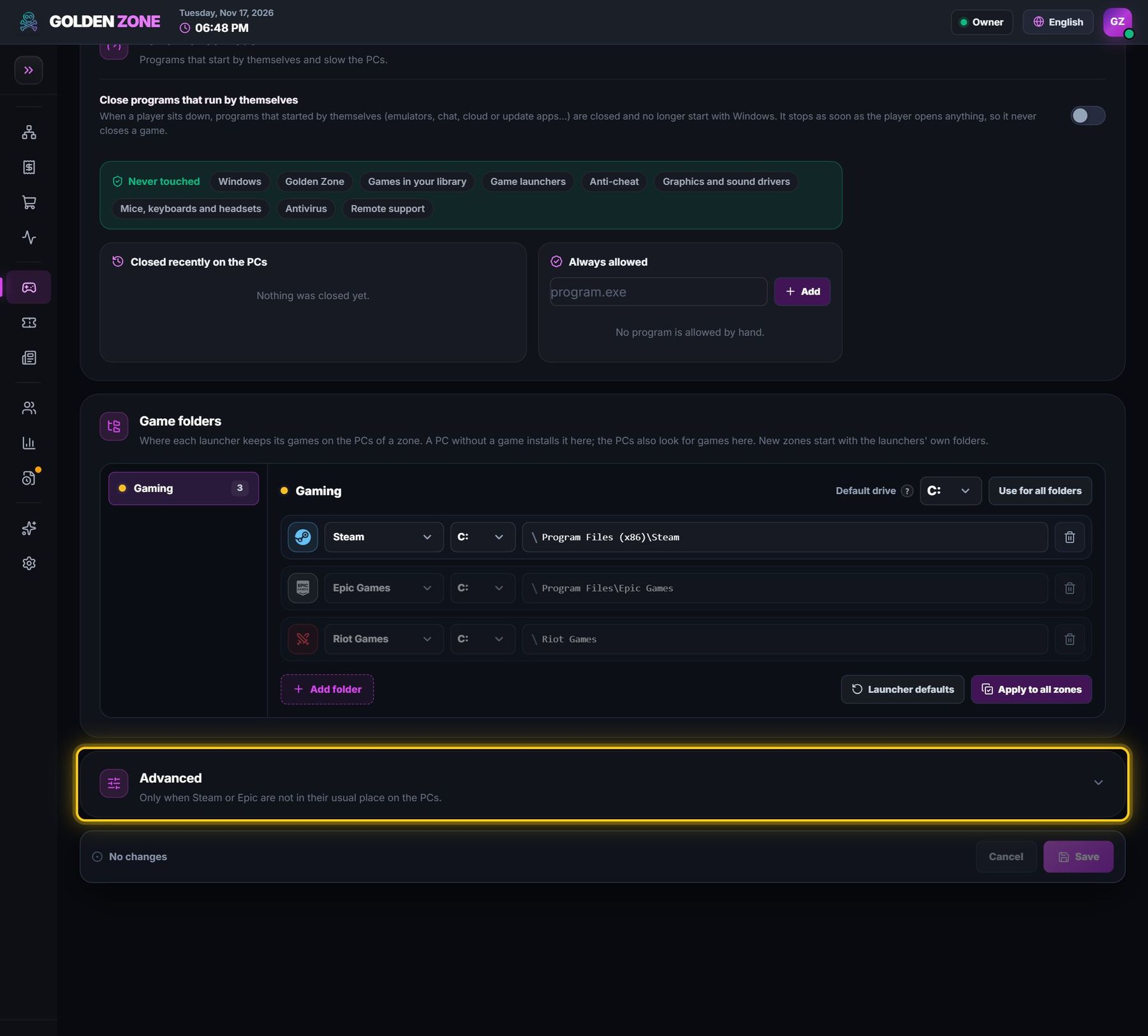
- Advanced — only when Steam or Epic are not in their usual place on the PCs.
- Press Save. The PCs get the new settings within a minute.